---
title: Adding Calculated Fields in a Blended Connector - Understanding Their Behavior
description: This guide will help you understand how to add and configure calculated fields to enhance your data analysis capabilities.
---
[Skip to content](https://support.dataslayer.ai/adding-calculated-fields-in-a-blended-connector-understanding-their-behavior#main-content)
- [English](https://support.dataslayer.ai/adding-calculated-fields-in-a-blended-connector-understanding-their-behavior)
- [Español](https://support.dataslayer.ai/es/agregar-campos-calculados-en-un-conector-combinado-comprendiendo-su-comportamiento)
English
Show submenu for translations
[](https://www.dataslayer.ai/)
Open main navigation
Close main navigation
- - [English](https://support.dataslayer.ai/adding-calculated-fields-in-a-blended-connector-understanding-their-behavior)
- [Español](https://support.dataslayer.ai/es/agregar-campos-calculados-en-un-conector-combinado-comprendiendo-su-comportamiento)
English
Show submenu for translations
Hello. How can we help you?
- There are no suggestions because the search field is empty.
1. [Knowledge base](https://support.dataslayer.ai/?hsLang=en)
2. [Blended Connectors](https://support.dataslayer.ai/blended-connectors?hsLang=en)
October 8, 2024
# Adding Calculated Fields in a Blended Connector - Understanding Their Behavior
## This guide will help you understand how to add and configure calculated fields to enhance your data analysis capabilities.
The Calculated Fields feature in Dataslayer's Blended Connectors is a powerful tool that allows you to create custom metrics and dimensions using existing data.
### Accessing the Calculated Fields Pop-Up
To access this functionality, click the **Calculated Fields** button in the Blended Connectors interface. This action opens a pop-up window where you can define new calculated fields or edit existing ones.
### Adding a Calculated Field
- Click the **+ Add Calculated Field** button located on the left side of the pop-up. This action creates a new calculated field entry.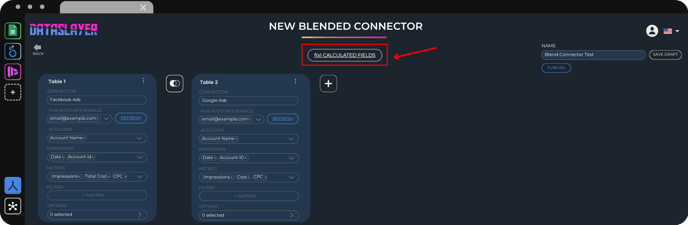
- In the **Name** field, enter a descriptive name for your calculated field. This name will help you identify the field in your analyses.
- **Choose the type** of calculated field you are creating from the Type dropdown menu. The available types include "Metric" and "Dimension".
- In the **Formula** field, input the formula for your calculated field. You can use existing metrics and dimensions from your data sources, as well as standard mathematical functions and operators.
For example, to sum the costs from Google Ads and Facebook Ads, you could use the formula:
```
Cost (Google Ads) + Total Cost (Facebook)
```
Meanwhile you are entering your formula, a **green check mark** will indicate that the formula is **valid**. If there is an error in the formula, a **red cross mark** will appear, prompting you to correct the formula..png?width=688&height=226&name=Share%20BC%20-%20Publish%20way%20(3).png)
You can find a comprehensive list of all the **formulas** supported by **calculated fields**, along with their descriptions, by following [this link](https://dataslayer.ai/available-formulas)!
- After writing and validating your formula, click the **Confirm Changes** button to save the calculated field. This action will add a new field to your blended connector, making it available for use in your queries.
Bear in mind that the **metrics and dimensions available** in the calculated fields will be limited to those **previously selected** in the **Blended Connector tables** - not all the ones available from the connector itself.
If you need a formula that we don't currently have, please contact us via [live chat](http://dataslayer.ai)or [e-mail](mailto:info@dataslayer.ai). We will evaluate its complexity to determine if it can be added.
### Understanding the Behavior of Calculated Fields
Calculated fields in Dataslayer Blended Connectors allow for dynamic and flexible data manipulation. Here are a few key behaviors to understand:
- **Dynamic Updates**: Calculated fields are dynamically updated based on the data from the connected sources. Any changes in the underlying data will be reflected in the calculated fields.
- **Data Integrity**: The integrity of the data is maintained through validation checks on the formulas. This ensures that only correct and meaningful calculations are added to your dataset.
- **Versatility**: You can create a wide range of calculated fields, from simple sums and averages to more complex calculations involving multiple parameters and functions. This versatility enables more insightful and comprehensive data analysis.
- **Real-Time Calculation**: Calculated fields are computed in real-time, providing up-to-date metrics and dimensions that reflect the current state of your data sources.
By effectively using calculated fields in the Blended Connectors, you can enhance your data analysis, uncover deeper insights, and make more informed decisions based on a customized view of your data.
As always, please contact us via our live chat on [our website](http://dataslayer.ai) or [via email](mailto:info@dataslayer.ai) if you still have doubts or questions. We are happy to help!
- [General](https://support.dataslayer.ai/general?hsLang=en)
- [Billing & Pricing](https://support.dataslayer.ai/billing-pricing?hsLang=en)
- [Data Sources](https://support.dataslayer.ai/data-sources?hsLang=en)
- [Blended Connectors](https://support.dataslayer.ai/blended-connectors?hsLang=en)
- [Google Sheets](https://support.dataslayer.ai/google-sheets?hsLang=en)
- [Microsoft Excel](https://support.dataslayer.ai/microsoft-excel?hsLang=en)
- [Spreadsheets](https://support.dataslayer.ai/spreadsheets?hsLang=en)
- [Looker Studio](https://support.dataslayer.ai/looker-studio?hsLang=en)
- [Big Query](https://support.dataslayer.ai/big-query?hsLang=en)
- [API Query Manager](https://support.dataslayer.ai/api-query-manager?hsLang=en)
- [Power BI](https://support.dataslayer.ai/power-bi?hsLang=en)
- [Amazon S3](https://support.dataslayer.ai/amazon-s3?hsLang=en)
- [Amazon Redshift](https://support.dataslayer.ai/amazon-redshift?hsLang=en)
- [Snowflake](https://support.dataslayer.ai/snowflake?hsLang=en#main-content)
- [Marketplace](https://support.dataslayer.ai/snowflake?hsLang=en#marketplace)
- [Google Cloud Storage](https://support.dataslayer.ai/google-cloud-storage?hsLang=en)
- [Database](https://support.dataslayer.ai/database?hsLang=en)
- [Azure SQL](https://support.dataslayer.ai/azure-sql?hsLang=en)
- [Azure Storage](https://support.dataslayer.ai/azure-storage?hsLang=en)
- [Dataslayer Atlas](https://support.dataslayer.ai/dataslayer-atlas?hsLang=en)
- [Morpheus](https://support.dataslayer.ai/morpheus?hsLang=en)
- [AI Looker Studio Analyzer](https://support.dataslayer.ai/ai-looker-studio-analyzer?hsLang=en)
- [Dataslayer MCP](https://support.dataslayer.ai/dataslayer-mcp?hsLang=en)
- [Dataslayer GPT](https://support.dataslayer.ai/dataslayer-gpt?hsLang=en)
- [Dataslayer AI Chat](https://support.dataslayer.ai/dataslayer-ai-chat?hsLang=en)
[](https://dataslayer.ai/)
Dataslayer.ai: Digital Marketing Reporting Made Easy
Copyright © 2026, DATASLAYER SL