---
title: "BigCommerce: Authentication Guide"
description: In this article, you'll learn how to connect securely BigCommerce to Dataslayer.
---
[Skip to content](https://support.dataslayer.ai/bigcommerce-authentication-guide#main-content)
- [English](https://support.dataslayer.ai/bigcommerce-authentication-guide)
- [Español](https://support.dataslayer.ai/es/bigcommerce-authentication-guide)
English
Show submenu for translations
[](https://www.dataslayer.ai/)
Open main navigation
Close main navigation
- - [English](https://support.dataslayer.ai/bigcommerce-authentication-guide)
- [Español](https://support.dataslayer.ai/es/bigcommerce-authentication-guide)
English
Show submenu for translations
Hello. How can we help you?
- There are no suggestions because the search field is empty.
1. [Knowledge base](https://support.dataslayer.ai/?hsLang=en)
2. [Data Sources](https://support.dataslayer.ai/data-sources?hsLang=en)
July 24, 2026
# BigCommerce: Authentication Guide
## In this article, you'll learn how to connect securely BigCommerce to Dataslayer.
**BigCommerce** is a supported data source within [**Dataslayer**](https://www.dataslayer.ai/), allowing you to access and analyze your BigCommerce account data directly in your reporting workflows. Connecting BigCommerce enables automated data retrieval, streamlined dashboard updates, and consistent visibility into your activity.
Authentication is required to authorize Dataslayer to access your BigCommerce data securely. This process ensures that only approved accounts can connect, protects your information, and allows Dataslayer to retrieve data on your behalf without exposing your credentials.
### **What do I need to authenticate BigCommerce in Dataslayer?**
To connect Dataslayer with the BigCommerce data source, you'll need:
- **Connection name**
- **Store hash**
- **Access token**
.png?width=670&height=369&name=BigCommerce%20%20-%20%20Auth%20Guide%20-%20July%20UI%202026%20(2).png)
#### **How do I generate an BigCommerce access token?**
1. **Access the [BigCommerce](https://login.bigcommerce.com/login)** site.
2. Once logged in, go to **Settings**.
**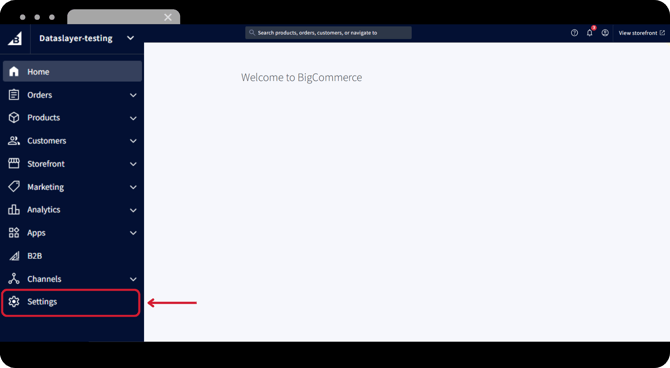**
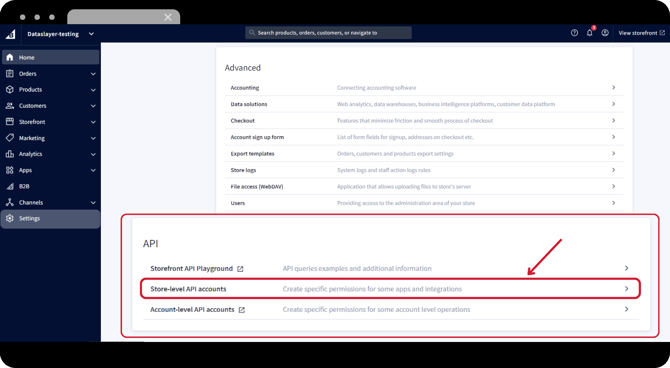
3. **Scroll down** to the *API* section and click on **Store-level API accounts**.
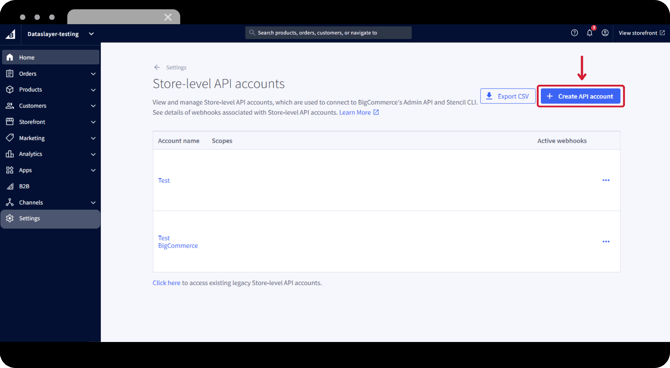
4. In Store-level API accounts, click on the right side button "**+ Create API account**".
5. For the account configuration:
- **Token Type**: V2/V3 API Token.
- **Name**: Choose any name that helps you to identify the connection.
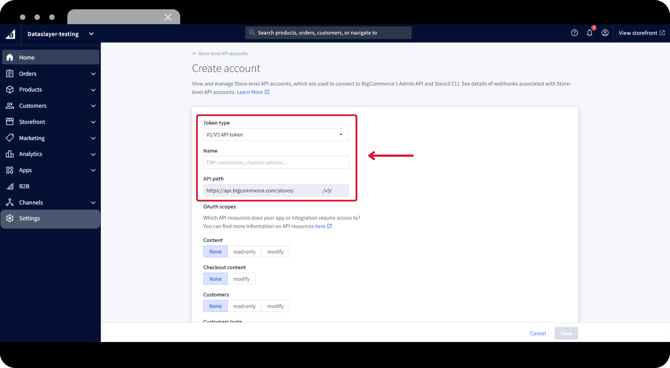
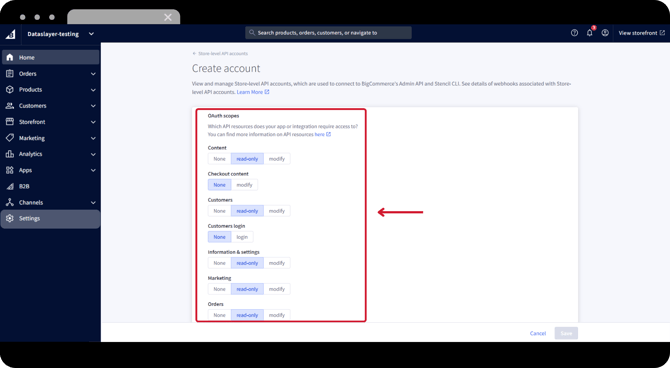
- **OAuth Scopes**: make sure that *read-only* is set for all possible permissions.
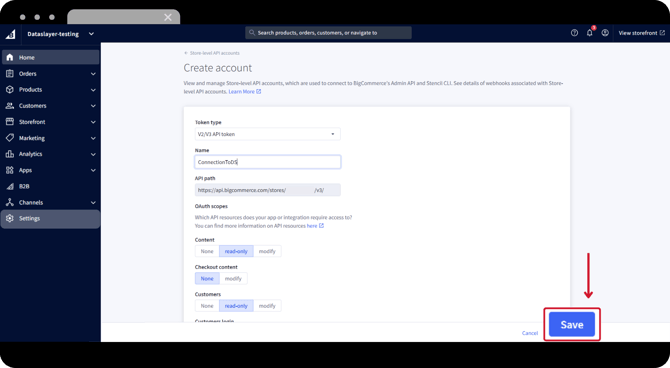
6. Once completed, proceed by *saving it*.Click on "**Save**" button.
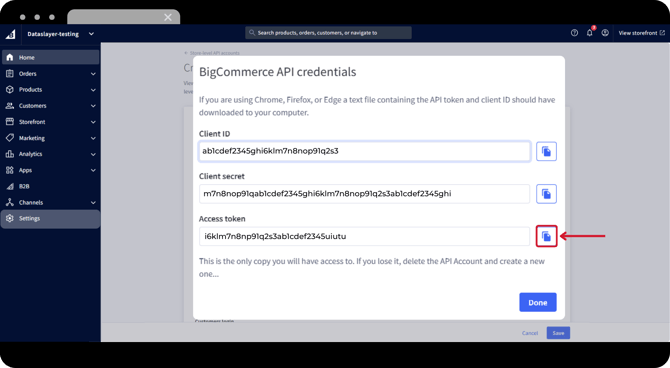
7. From the **BigCommerce API Credentials** window, *copy* the **Access token** displayed.
**Now you have the information needed to make the connection between BigCommerce and Dataslayer!**
### **How do I connect BigCommerce to Dataslayer?**
1. Log in to **[Dataslayer.ai](http://dataslayer.ai/)** and look for the **Data Sources Hub** section in the left menu.
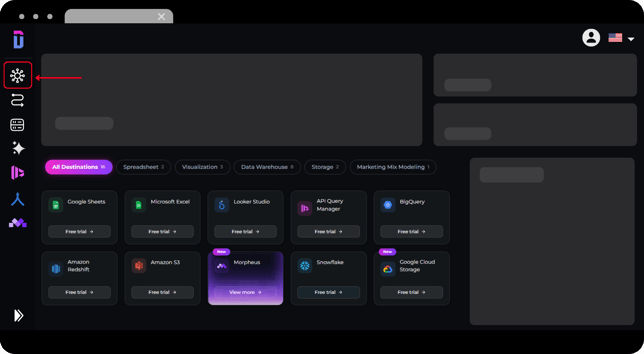
2. Once in there, look for the **BigCommerce** connector.
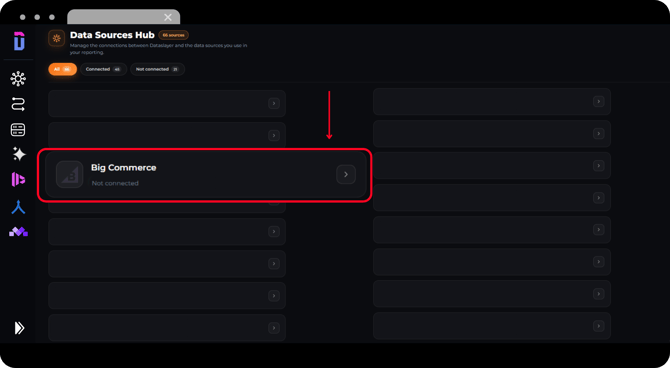
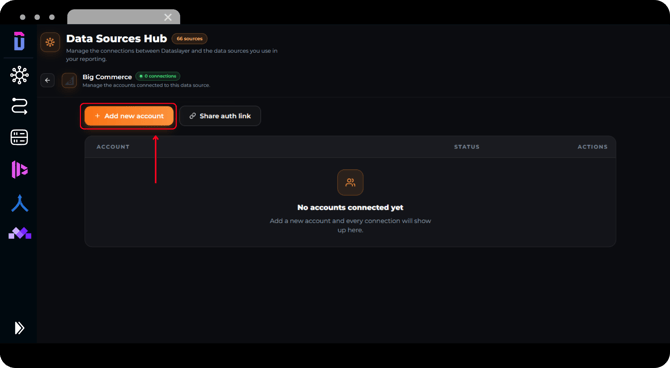
3. Click on "**+ Add new account**" and then click on **Start**.
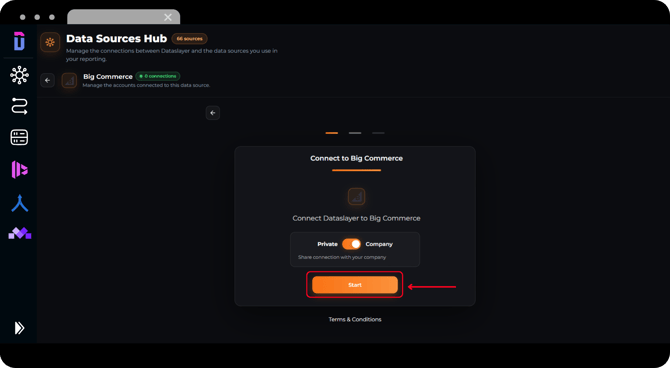
4. In the Log In window, fill up:
- **Connection Name**: Choose a name to identify this connection.
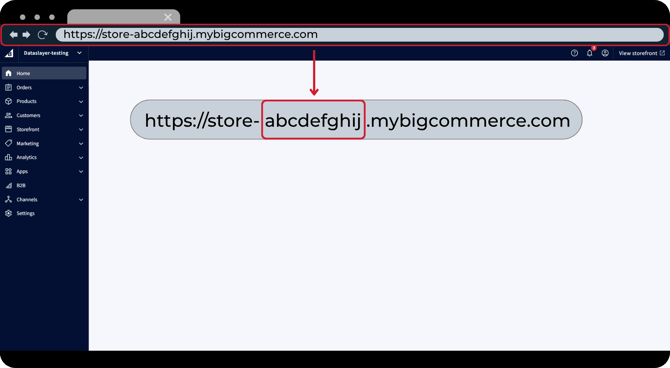
- **Store Hash**: You can find your store hash in your store URL: store-HASH.mybigcommerce.com
*Important Note:*
Copy only the Hash, without "store-" nor ".mybigcommerce.com"
- **Access Token**: Paste the Access Token copied from the BigCommerce API Credentials window.
.png?width=584&height=321&name=BigCommerce%20%20-%20%20Auth%20Guide%20-%20July%20UI%202026%20(1).png)
5. With all the fields completed, click on **Connect**.
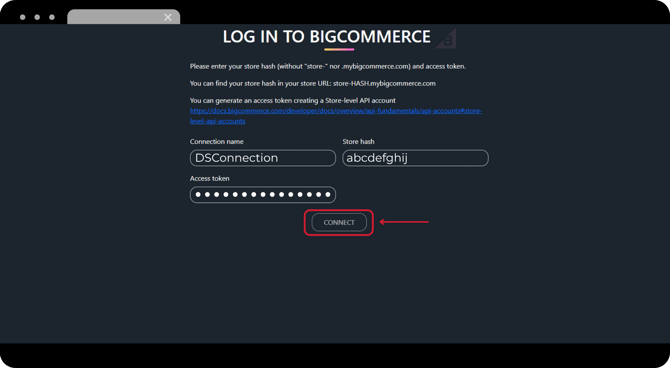
#### Once the connection is successful, your BigCommerce account will appear in **Data Sources Hub** and can be selected when building reports.
If you need to **reauthenticate your connection**, please check [**this article**](https://support.dataslayer.ai/how-to-refresh-your-hub-connection-authorization?hsLang=en) for a detailed walkthrough.
As always, please do not hesitate to contact us via our live chat on [our website](https://dataslayer.ai/?__hstc=205882892.6526bb15cfac7d661ffbfd3c4281267e.1709723421854.1710847825554.1710853493282.26&__hssc=205882892.2.1710853493282&__hsfp=1885414922) or via [e-mail](mailto:info@dataslayer.ai) if you still have doubts or questions. We are happy to help!
- [General](https://support.dataslayer.ai/general?hsLang=en)
- [Billing & Pricing](https://support.dataslayer.ai/billing-pricing?hsLang=en)
- [Data Sources](https://support.dataslayer.ai/data-sources?hsLang=en)
- [Blended Connectors](https://support.dataslayer.ai/blended-connectors?hsLang=en)
- [Google Sheets](https://support.dataslayer.ai/google-sheets?hsLang=en)
- [Microsoft Excel](https://support.dataslayer.ai/microsoft-excel?hsLang=en)
- [Spreadsheets](https://support.dataslayer.ai/spreadsheets?hsLang=en)
- [Looker Studio](https://support.dataslayer.ai/looker-studio?hsLang=en)
- [Big Query](https://support.dataslayer.ai/big-query?hsLang=en)
- [API Query Manager](https://support.dataslayer.ai/api-query-manager?hsLang=en)
- [Power BI](https://support.dataslayer.ai/power-bi?hsLang=en)
- [Amazon S3](https://support.dataslayer.ai/amazon-s3?hsLang=en)
- [Amazon Redshift](https://support.dataslayer.ai/amazon-redshift?hsLang=en)
- [Snowflake](https://support.dataslayer.ai/snowflake?hsLang=en#main-content)
- [Marketplace](https://support.dataslayer.ai/snowflake?hsLang=en#marketplace)
- [Google Cloud Storage](https://support.dataslayer.ai/google-cloud-storage?hsLang=en)
- [Database](https://support.dataslayer.ai/database?hsLang=en)
- [Azure SQL](https://support.dataslayer.ai/azure-sql?hsLang=en)
- [Azure Storage](https://support.dataslayer.ai/azure-storage?hsLang=en)
- [Dataslayer Atlas](https://support.dataslayer.ai/dataslayer-atlas?hsLang=en)
- [Morpheus](https://support.dataslayer.ai/morpheus?hsLang=en)
- [AI Looker Studio Analyzer](https://support.dataslayer.ai/ai-looker-studio-analyzer?hsLang=en)
- [Dataslayer MCP](https://support.dataslayer.ai/dataslayer-mcp?hsLang=en)
- [Dataslayer GPT](https://support.dataslayer.ai/dataslayer-gpt?hsLang=en)
- [Dataslayer AI Chat](https://support.dataslayer.ai/dataslayer-ai-chat?hsLang=en)
[](https://dataslayer.ai/)
Dataslayer.ai: Digital Marketing Reporting Made Easy
Copyright © 2026, DATASLAYER SL