---
title: Connect Google Sheets and Microsoft Excel to Looker Studio
description: In this article, you can see how to connect your Dataslayer queries with Looker Studio in a few simple steps
---
[Skip to content](https://support.dataslayer.ai/connect-google-sheets-with-google-data-studio#main-content)
- [English](https://support.dataslayer.ai/connect-google-sheets-with-google-data-studio)
- [Español](https://support.dataslayer.ai/es/conectar-google-sheets-con-google-data-studio)
English
Show submenu for translations
[](https://www.dataslayer.ai/)
Open main navigation
Close main navigation
- - [English](https://support.dataslayer.ai/connect-google-sheets-with-google-data-studio)
- [Español](https://support.dataslayer.ai/es/conectar-google-sheets-con-google-data-studio)
English
Show submenu for translations
Hello. How can we help you?
- There are no suggestions because the search field is empty.
1. [Knowledge base](https://support.dataslayer.ai/?hsLang=en)
2. [Google Sheets](https://support.dataslayer.ai/google-sheets?hsLang=en)
April 4, 2025
# Connect Google Sheets and Microsoft Excel to Looker Studio
## In this article, you can see how to connect your Dataslayer queries with Looker Studio in a few simple steps
### Want to turn your marketing data into insightful dashboards?
With **Dataslayer**, you can easily [create queries](https://support.dataslayer.ai/how-to-make-a-simple-query?hsLang=en) in **Google Sheets** or **Microsoft Excel** and connect them to **Looker Studio** for powerful, visual reporting.
In this guide, we’ll walk you through how to integrate your spreadsheet data with Looker Studio in just a few clicks!
When creating your Dataslayer queries, make sure to check the option "**Use format compatible with Looker Studio**" to avoid errors during integration.
[Learn more about query options here.](https://support.dataslayer.ai/dataslayerai-advanced-options?hsLang=en)

If you prefer a faster method, you can try using **[Dataslayer’s connectors](https://dataslayer.ai/looker-studio#connectorslooker) in [Looker Studio](https://dataslayer.ai/pricing-looker-studio)** to connect your data sources directly—no spreadsheets required!
### 
To connect an Excel file to Looker Studio, you can easily follow these steps:
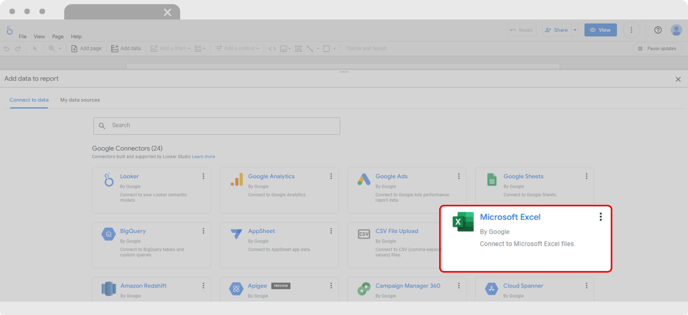
1\. **Create a new report** in Looker Studio and select **Microsoft Excel** as the data source.
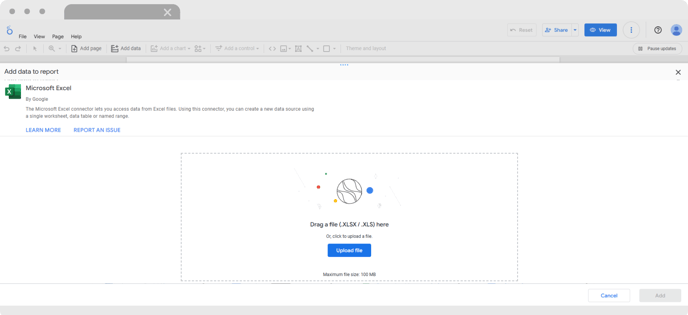
2\. **Upload your Excel file** (.xlsx or .xls) when prompted.
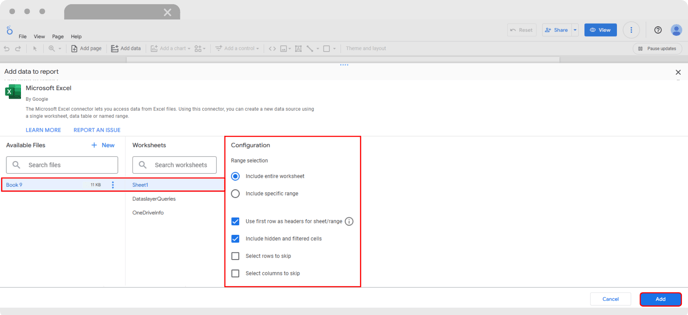
3\. Once uploaded, **choose the worksheets** you want to include and configure any necessary options. Click on "**Add**".
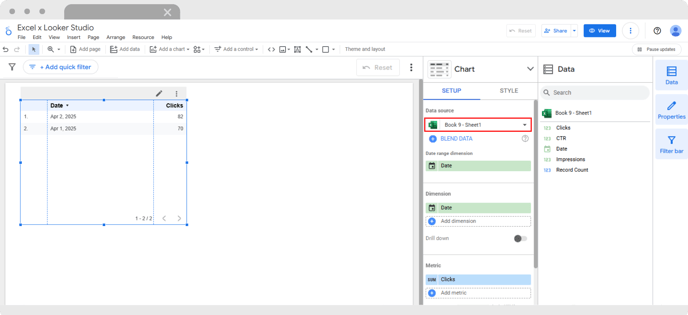
4\. **Done!** You’ll now see the Setup section showing where your data is being pulled from.
**Microsoft Excel** is a native **Google connector**;for **any error** with the dashboard in Looker Studio,you should **contact [Google Support](https://support.google.com/).**
### 
There are **two methods** to connect Google Sheets to Looker Studio:

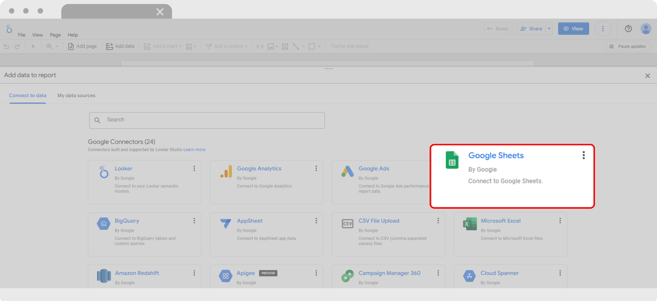
1\. **Create a new report** in Looker Studio and choose **Google Sheets** as the connector.
****
2\. **Authorize access** using the same Google account you used to create the query.

3\. Select the spreadsheet and the worksheet where the query is located. Review and check the options needed and click on **Add**.
If you want to add more than one query to Looker, **each query must be on a separate worksheet** (you cannot put two queries on the same worksheet).
****
4\. **That’s it!** Now you can start building a visual PPC report using the data from your Google Sheets queries.

**Google Sheets** is a native **Google connector**;for **any error** with the dashboard in Looker Studio,you should **contact [Google Support](https://support.google.com/).**

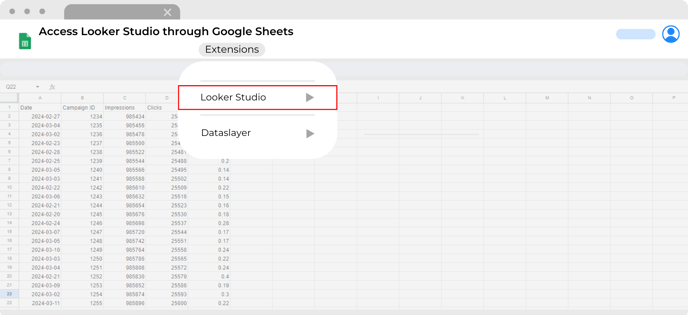
1\. After creating your query (don’t forget to enable the "**Use format compatible with Looker Studio**" option), go to the Google Sheets menu and click on **Extensions** \> **Looker Studio**.
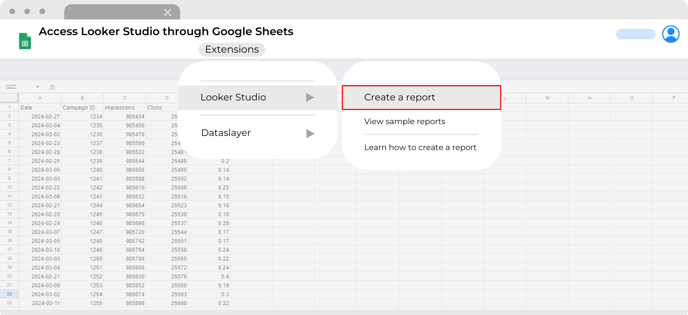
2\. Once in **Looker Studio** option click on "**Create a report**".
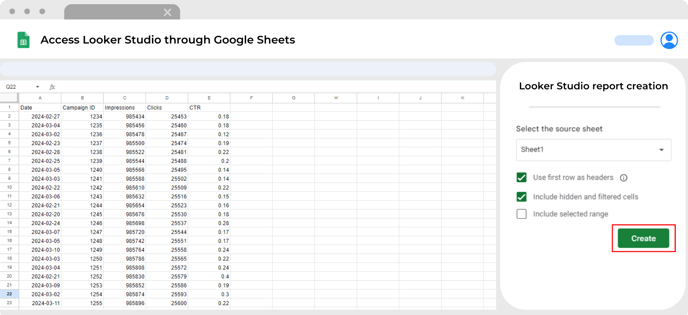
3\. A few options will be displayed on the right side, please select the ones you prefer and then click on the "**Create**" button.
4\. Done! A new Looker Studio report will open, displaying the data pulled from your selected sheets in prebuilt charts.
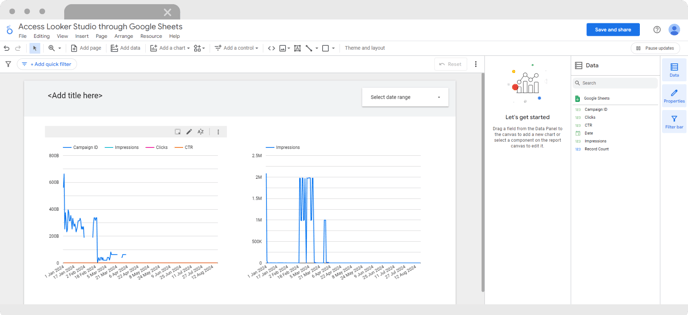
**Google Sheets** is anative **Google connector**;for **any error** with the dashboard in Looker Studio,you should **contact [Google Support](https://support.google.com/).**
As always, please do not hesitate to contact us via our live chat on [our website](https://dataslayer.ai/) or via [e-mail](mailto:info@dataslayer.ai) if you still have any doubts or questions. We are happy to help!
- [General](https://support.dataslayer.ai/general?hsLang=en)
- [Billing & Pricing](https://support.dataslayer.ai/billing-pricing?hsLang=en)
- [Data Sources](https://support.dataslayer.ai/data-sources?hsLang=en)
- [Blended Connectors](https://support.dataslayer.ai/blended-connectors?hsLang=en)
- [Google Sheets](https://support.dataslayer.ai/google-sheets?hsLang=en)
- [Microsoft Excel](https://support.dataslayer.ai/microsoft-excel?hsLang=en)
- [Spreadsheets](https://support.dataslayer.ai/spreadsheets?hsLang=en)
- [Looker Studio](https://support.dataslayer.ai/looker-studio?hsLang=en)
- [Big Query](https://support.dataslayer.ai/big-query?hsLang=en)
- [API Query Manager](https://support.dataslayer.ai/api-query-manager?hsLang=en)
- [Power BI](https://support.dataslayer.ai/power-bi?hsLang=en)
- [Amazon S3](https://support.dataslayer.ai/amazon-s3?hsLang=en)
- [Amazon Redshift](https://support.dataslayer.ai/amazon-redshift?hsLang=en)
- [Snowflake](https://support.dataslayer.ai/snowflake?hsLang=en#main-content)
- [Marketplace](https://support.dataslayer.ai/snowflake?hsLang=en#marketplace)
- [Google Cloud Storage](https://support.dataslayer.ai/google-cloud-storage?hsLang=en)
- [Database](https://support.dataslayer.ai/database?hsLang=en)
- [Azure SQL](https://support.dataslayer.ai/azure-sql?hsLang=en)
- [Azure Storage](https://support.dataslayer.ai/azure-storage?hsLang=en)
- [Dataslayer Atlas](https://support.dataslayer.ai/dataslayer-atlas?hsLang=en)
- [Morpheus](https://support.dataslayer.ai/morpheus?hsLang=en)
- [AI Looker Studio Analyzer](https://support.dataslayer.ai/ai-looker-studio-analyzer?hsLang=en)
- [Dataslayer MCP](https://support.dataslayer.ai/dataslayer-mcp?hsLang=en)
- [Dataslayer GPT](https://support.dataslayer.ai/dataslayer-gpt?hsLang=en)
- [Dataslayer AI Chat](https://support.dataslayer.ai/dataslayer-ai-chat?hsLang=en)
[](https://dataslayer.ai/)
Dataslayer.ai: Digital Marketing Reporting Made Easy
Copyright © 2026, DATASLAYER SL