---
title: How to add users and connectors to your Dataslayer subscription?
description: Learn how to add users and connectors to your Dataslayer subscription from the License section. Follow this step-by-step guide to update your plan settings.
---
[Skip to content](https://support.dataslayer.ai/how-to-add-users-and-connectors-to-your-dataslayer-subscription#main-content)
- [English](https://support.dataslayer.ai/how-to-add-users-and-connectors-to-your-dataslayer-subscription)
- [Español](https://support.dataslayer.ai/es/how-to-add-users-and-connectors-to-your-dataslayer-subscription)
English
Show submenu for translations
[](https://www.dataslayer.ai/)
Open main navigation
Close main navigation
- - [English](https://support.dataslayer.ai/how-to-add-users-and-connectors-to-your-dataslayer-subscription)
- [Español](https://support.dataslayer.ai/es/how-to-add-users-and-connectors-to-your-dataslayer-subscription)
English
Show submenu for translations
Hello. How can we help you?
- There are no suggestions because the search field is empty.
1. [Knowledge base](https://support.dataslayer.ai/?hsLang=en)
2. [Billing & Pricing](https://support.dataslayer.ai/billing-pricing?hsLang=en)
May 25, 2026
# How to add users and connectors to your Dataslayer subscription?
## In this article, we'll explain how to add users and connectors to your Dataslayer subscription from the License section.
This guide explains how to manage your Dataslayer subscription by adding users and connectors. From the **License** section, you can review your active plan, see how many connectors and users are currently assigned, and update them whenever needed.
Follow the steps below to add more connectors or users to your Dataslayer license.
**Step 1**: Log in to Dataslayer
- Go to the Dataslayer website and click **Login / Sign Up** in the top-right corner.
- Sign in with your Dataslayer account credentials. Once logged in, you will be redirected to your main Dataslayer dashboard.

**Step 2**: Open the License section
- From the dashboard, click the **profile icon** in the top-right corner.
- A dropdown menu will appear. Select **License**.
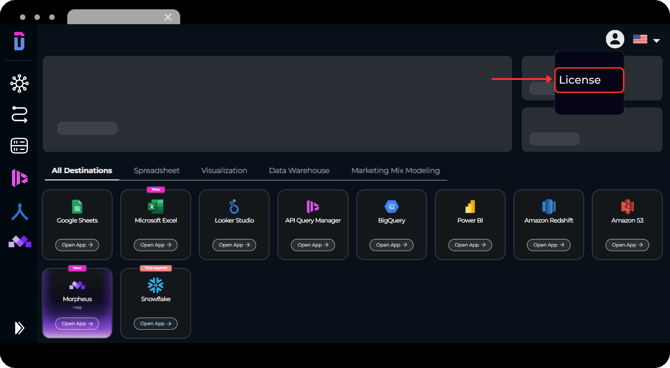
This will take you to the subscription management page, where you can view and manage your active Dataslayer licenses.
**Step 3**: Find your active license
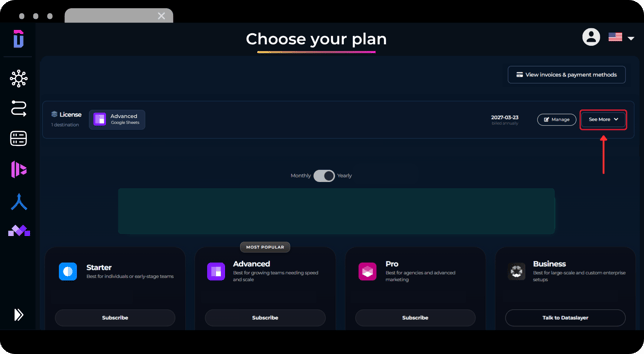
- On the **Choose your plan** page, you will see your current active license at the top of the screen. This license card shows important information such as:
- The active plan
- The selected destination
- The billing period
- The number of connectors included and currently selected
- The number of users included and currently assigned
- Click on **See More
**
**Step 4**: Review your license details
- After clicking **See More**, the license section will expand. Here you can check the current configuration of your subscription, including:
- - Destination included in the license
- Number of selected connectors
- Accounts available per connector
- Number of assigned users
- Billing frequency
From this expanded view, you can edit both connectors and users using the pencil icons.
#### **How to add connectors to your Dataslayer license**
To add or update connectors in your subscription, follow these steps:
##### **Step 1:** Click the connector edit icon
- In the expanded license details, locate the **connectors** section.
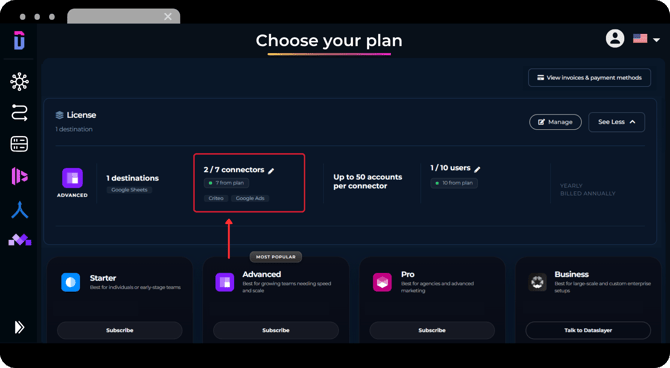
- Click the **pencil icon** next to the connector count.
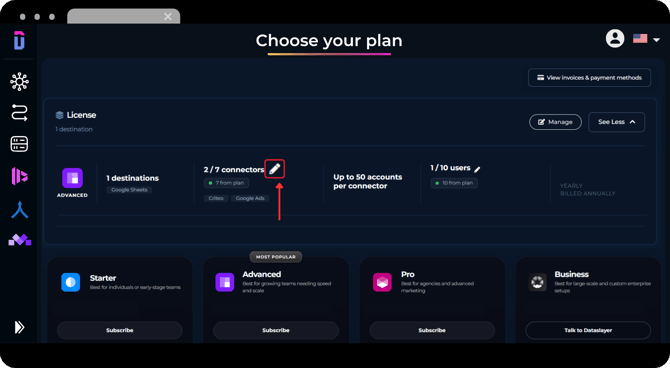
- This will open the **Edit Connectors** window.
##### **Step 2:** Select the connectors you want to add
- ##### In the **Edit Connectors** window, you will see the available connectors for your subscription.
Use the search bar to find a specific connector, or browse the list manually.
- Select the connectors you want to add to your license. Selected connectors will be highlighted and counted at the top of the window.
##### 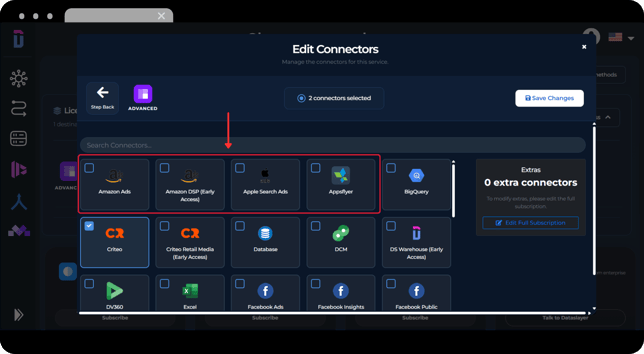
**The number of connectors you can select depends on the user limit included in your current Dataslayer plan.**
If you want to add **Extra Connectors** beyond your plan limit, you will need to edit your full subscription by clicking **Edit Full Subscription**.
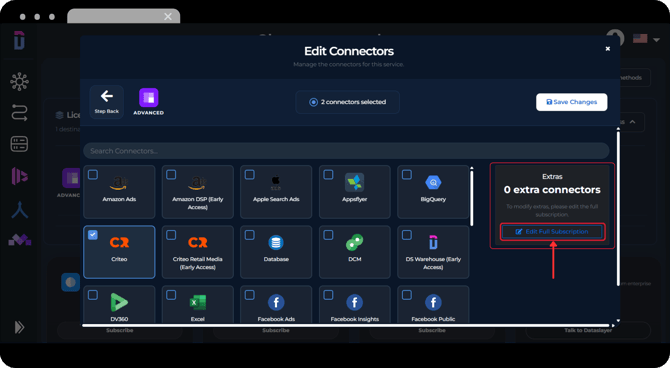
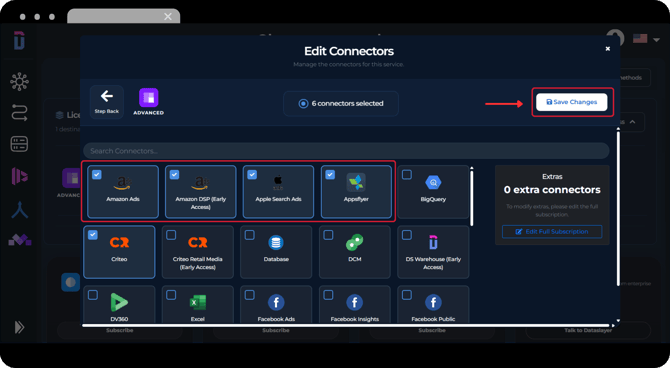
**Step 3:** Save your connector changes
- Once you have selected the connectors you want to add, click **Save Changes**.
After saving, you will return to the License page and see a confirmation message: **Connectors updated successfully.**
**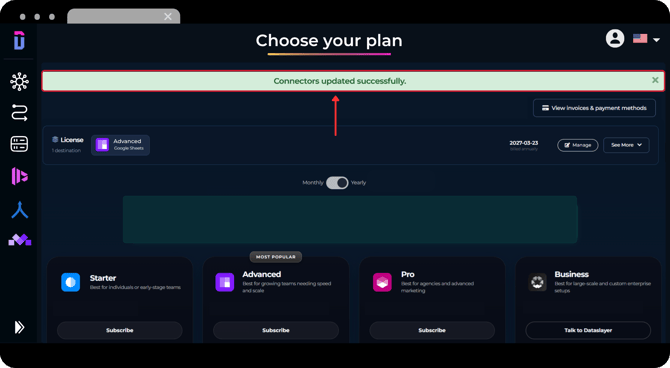**
Your selected connectors will now be available in your Dataslayer subscription.
#### **How to add users to your Dataslayer license**
To add or update users in your subscription, follow these steps:
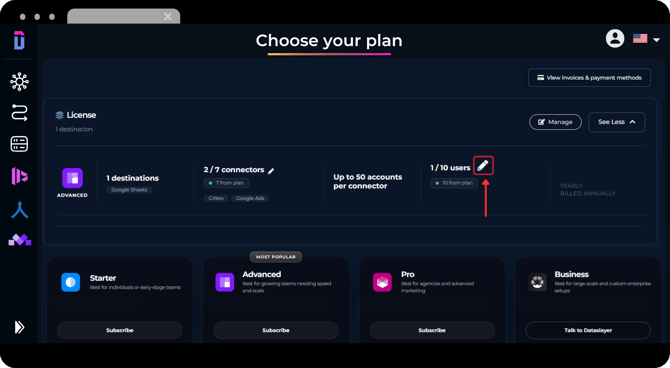
**Step 1:** Click the user edit icon
- In the expanded license details, locate the **users** section. Click the **pencil icon** next to the user count. This will open the **Edit Users** window.
**Step 2:** Select the users you want to add
- In the **Edit Users** window, you will see the users available for your subscription.
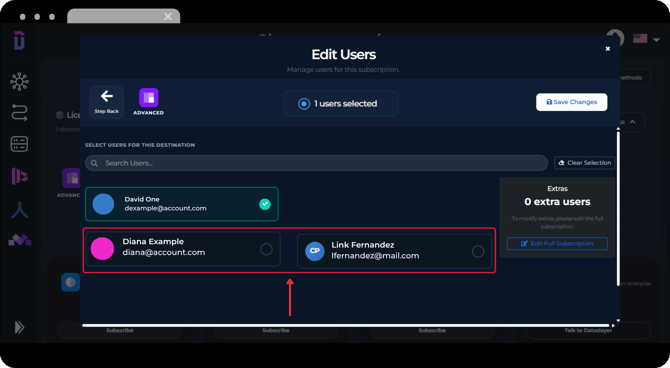
Use the search bar to find a specific user, or select users from the list.
- Click on the **users you want to assign to the license**. Selected users will be highlighted, and the total number of selected users will update at the top of the window.
**The number of users you can assign depends on the user limit included in your current Dataslayer plan.**
If you want to add **Extra Users** beyond your plan limit, you will need to edit your full subscription by clicking **Edit Full Subscription**.
.png?width=670&height=369&name=UI%20FEB%202026%20-%20%20Add%20Usersconnectors%20to%20plan%20(1).png)
**Step 3:** Save your user changes
- Once you have selected the users you want to add, click **Save Changes**.
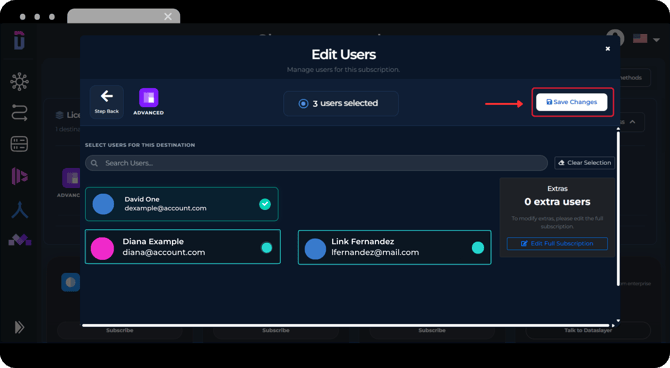
After saving, you will return to the License page and see a confirmation message: **Users updated successfully.
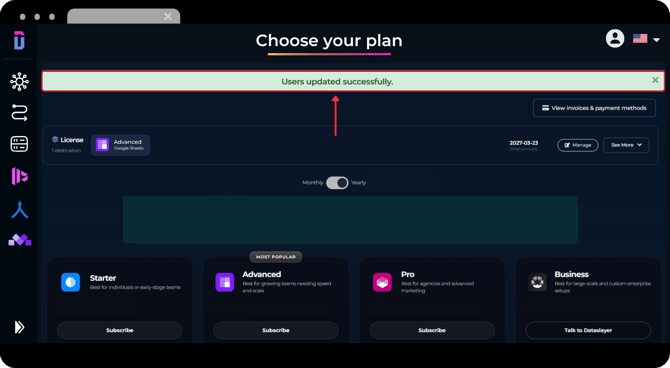**
The selected users will now have access to the subscription or license.
#### **Important notes about users and connectors**
- The number of users and connectors you can assign depends on the limits included in your Dataslayer plan.
- If you need more users or connectors than your current plan allows, you'll need to *edit your full subscription* or *upgrade* your plan.
- In the edit windows, you will also see an **Extras** section. This shows whether additional users or connectors are available for your subscription.
As always, please contact us via our live chat on our [website](https://dataslayer.ai/) or via [email](mailto:info@dataslayer.ai) if you still have doubts or questions. We are happy to help!
- [General](https://support.dataslayer.ai/general?hsLang=en)
- [Billing & Pricing](https://support.dataslayer.ai/billing-pricing?hsLang=en)
- [Data Sources](https://support.dataslayer.ai/data-sources?hsLang=en)
- [Blended Connectors](https://support.dataslayer.ai/blended-connectors?hsLang=en)
- [Google Sheets](https://support.dataslayer.ai/google-sheets?hsLang=en)
- [Microsoft Excel](https://support.dataslayer.ai/microsoft-excel?hsLang=en)
- [Spreadsheets](https://support.dataslayer.ai/spreadsheets?hsLang=en)
- [Looker Studio](https://support.dataslayer.ai/looker-studio?hsLang=en)
- [Big Query](https://support.dataslayer.ai/big-query?hsLang=en)
- [API Query Manager](https://support.dataslayer.ai/api-query-manager?hsLang=en)
- [Power BI](https://support.dataslayer.ai/power-bi?hsLang=en)
- [Amazon S3](https://support.dataslayer.ai/amazon-s3?hsLang=en)
- [Amazon Redshift](https://support.dataslayer.ai/amazon-redshift?hsLang=en)
- [Snowflake](https://support.dataslayer.ai/snowflake?hsLang=en#main-content)
- [Marketplace](https://support.dataslayer.ai/snowflake?hsLang=en#marketplace)
- [Google Cloud Storage](https://support.dataslayer.ai/google-cloud-storage?hsLang=en)
- [Database](https://support.dataslayer.ai/database?hsLang=en)
- [Azure SQL](https://support.dataslayer.ai/azure-sql?hsLang=en)
- [Azure Storage](https://support.dataslayer.ai/azure-storage?hsLang=en)
- [Dataslayer Atlas](https://support.dataslayer.ai/dataslayer-atlas?hsLang=en)
- [Morpheus](https://support.dataslayer.ai/morpheus?hsLang=en)
- [AI Looker Studio Analyzer](https://support.dataslayer.ai/ai-looker-studio-analyzer?hsLang=en)
- [Dataslayer MCP](https://support.dataslayer.ai/dataslayer-mcp?hsLang=en)
- [Dataslayer GPT](https://support.dataslayer.ai/dataslayer-gpt?hsLang=en)
- [Dataslayer AI Chat](https://support.dataslayer.ai/dataslayer-ai-chat?hsLang=en)
[](https://dataslayer.ai/)
Dataslayer.ai: Digital Marketing Reporting Made Easy
Copyright © 2026, DATASLAYER SL