---
title: How to Use Dataslayer with Google Sheets
description: "Learn how to use Dataslayer with Google Sheets: connect data sources, create queries and automate your marketing reports."
---
[Skip to content](https://support.dataslayer.ai/how-to-connect-dataslayer-to-google-sheets#main-content)
- [English](https://support.dataslayer.ai/how-to-connect-dataslayer-to-google-sheets)
- [Español](https://support.dataslayer.ai/es/how-to-connect-dataslayer-to-google-sheets)
English
Show submenu for translations
[](https://www.dataslayer.ai/)
Open main navigation
Close main navigation
- - [English](https://support.dataslayer.ai/how-to-connect-dataslayer-to-google-sheets)
- [Español](https://support.dataslayer.ai/es/how-to-connect-dataslayer-to-google-sheets)
English
Show submenu for translations
Hello. How can we help you?
- There are no suggestions because the search field is empty.
1. [Knowledge base](https://support.dataslayer.ai/?hsLang=en)
2. [Google Sheets](https://support.dataslayer.ai/google-sheets?hsLang=en)
September 24, 2026
# How to Use Dataslayer with Google Sheets
## A beginner’s guide to connecting data sources, creating queries and automating marketing reports in Google Sheets.
### Before You Start
Dataslayer lets you connect advertising, analytics, CRM and ecommerce platforms directly to Google Sheets. You can import data, create custom reports and schedule automatic refreshes without manually copying and pasting information.
If you do not have a Dataslayer account yet, [create one here](https://app.dataslayer.ai/) and select Google Sheets from the Products section.
#### What You Need
Before getting started, make sure you have:
- A Google account with access to Google Sheets.
- A Dataslayer account.
- Access to the advertising, analytics or marketing platform you want to connect.
- Permission to authorize Dataslayer to access your data.
- A new or existing Google Sheets spreadsheet.
### How to Install the Dataslayer Google Sheets Extension
You can install Dataslayer from the [Google Workspace Marketplace](https://workspace.google.com/marketplace/app/dataslayer/819432412786).
#### Install Dataslayer
1. Open the Dataslayer listing in the Google Workspace Marketplace.
2. Click **Install**.
3. Follow the instructions to authorize the Dataslayer Google Sheets add-on.
4. Open a new or existing Google Sheets spreadsheet.
5. Go to **Extensions → Dataslayer → Launch Sidebar**.
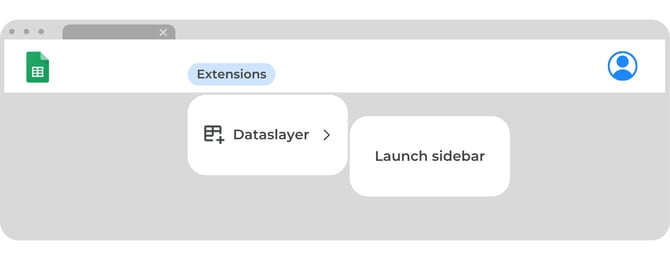
The Dataslayer sidebar will open on the right side of your spreadsheet.
If Dataslayer does not appear in the Extensions menu, reload Google Sheets and check that the add-on was installed using the correct Google account.
### How to Connect a Data Source to Google Sheets
After opening the Dataslayer sidebar, you can connect the platform containing the data you want to analyse.
#### Connect Your Account
1. Select the data source you want to use.
2. Select the hub account and the account you want to connect.
3. If required, click **Manage Hub Accounts** to add or authorize another account.
4. Authorize Dataslayer if the platform requests permission.
-Sep-30-2024-09-35-32-6635-AM.png?width=1032&height=378&name=Browser%20template%20(9)-Sep-30-2024-09-35-32-6635-AM.png)
Depending on the connector, you may need to open the account management section, add a new account or user and accept all the requested permissions.
If some accounts, properties or pages are missing, review [How to accept permissions on your data sources in Dataslayer](https://support.dataslayer.ai/how-to-accept-permissions-on-my-data-sources-in-dataslayer?hsLang=en).
The available accounts depend on the permissions granted to the connected platform. If you cannot see the account you need, check that you are using the correct login and that your user has sufficient access.
### How to Import Data into Google Sheets
Once your data source is connected, you can create a query to import data into your spreadsheet.
#### Create Your First Query
1. Select the data source from the Dataslayer sidebar.
2. Choose the account you want to analyse.
-Sep-30-2024-09-35-13-5923-AM.png?width=1032&height=378&name=Browser%20template%20(8)-Sep-30-2024-09-35-13-5923-AM.png)
3. Select a date range.
-Sep-30-2024-09-34-15-3413-AM.png?width=1032&height=378&name=Browser%20template%20(6)-Sep-30-2024-09-34-15-3413-AM.png)
4. Choose the dimensions for your report, such as date, campaign or country.
5. Choose the metrics you want to retrieve, such as clicks, impressions, conversions or revenue.
6. Add filters if you only want to retrieve specific data.
7. Select the cell where you want the results to start.
8. Click **Generate Table**.
-Sep-30-2024-09-34-53-0768-AM.png?width=1032&height=378&name=Browser%20template%20(7)-Sep-30-2024-09-34-53-0768-AM.png)
Dataslayer will create a data table in your spreadsheet. The query configuration is stored in the spreadsheet so you can refresh or modify it later.
For a more detailed example, see [How to make a simple query](https://support.dataslayer.ai/how-to-make-a-simple-query?hsLang=en).
#### Choose the Right Date Range and Fields
To keep your report fast and easy to maintain:
- Select only the metrics and dimensions you need.
- Use filters to reduce the amount of data retrieved.
- Use a specific date range instead of retrieving unnecessary historical data.
- Test the query before adding a schedule.
### How to Create a Google Sheets Marketing Report
You can use the data imported by Dataslayer to create marketing reports and dashboards in Google Sheets.
#### Organize Your Report
A simple marketing report can include:
- A summary of the main KPIs.
- Performance by date.
- Performance by campaign, channel or account.
- Charts showing trends over time.
- Filters for dates, campaigns or other dimensions.
You can also use Dataslayer templates to create reports faster.
#### Use a Dataslayer Template
1. Open a Google Sheets spreadsheet.
2. Go to **Extensions → Dataslayer**.
3. Open the **Template Gallery**.
-Sep-22-2026-11-56-55-8433-AM.png?width=670&height=246&name=Browser%20template%20(2)-Sep-22-2026-11-56-55-8433-AM.png)
4. Select the template that matches your reporting needs.
5. Connect the required accounts.
6. Adjust the date range, metrics and dimensions.
7. Load the data into the template.
For more information, see [How to use the Google Sheets templates](https://support.dataslayer.ai/how-to-use-the-google-sheets-templates?hsLang=en).
### How to Automate Google Sheets Reports
You can schedule automatic refreshes so that Dataslayer updates your reports without requiring you to run each query manually.
#### Schedule Automatic Refreshes
When creating a schedule, review:
- The spreadsheet and queries that should be refreshed.
- The refresh frequency.
- The time at which the schedule should run.
- The amount of data retrieved by each query.
-Sep-22-2026-11-58-35-5578-AM.png?width=670&height=246&name=Browser%20template%20(3)-Sep-22-2026-11-58-35-5578-AM.png)
To improve performance:
- Use filters and specific date ranges.
- Select only the metrics and dimensions you need.
- Avoid scheduling several large queries at the same time.
- Spread schedules across different times when possible.
Dataslayer supports a maximum of seven schedules per document and user. Google Apps Script execution limits may also affect large or simultaneous refreshes.
For more information, see [Scheduling Limits and Best Practices in Dataslayer](https://support.dataslayer.ai/scheduling-limits-and-best-practices-in-dataslayer?hsLang=en).
### Manage and Update Your Queries
After creating a query, you can manage it from the Dataslayer sidebar.
#### Available Query Actions
Depending on your needs, you can:
- Refresh the data.
- Modify the date range, dimensions or metrics.
- Add or remove filters.
- Duplicate the query.
- Review the query parameters.
- Go to the query results.
- Delete the query and its data.
.png?width=1032&height=378&name=Browser%20template%20(9).png)
For more information, see [Understanding the Dataslayer Manage Queries view](https://support.dataslayer.ai/understanding-the-dataslayer-manage-queries-view?hsLang=en).
### Common Issues
#### Dataslayer Does Not Appear in Google Sheets
Make sure that the add-on is installed from the Google Workspace Marketplace and that you are using the same Google account in Google Sheets. Reload the spreadsheet and check the Extensions menu again.
#### The Dataslayer Sidebar Is Blank
Reload the Google Sheets page, close the Dataslayer sidebar and open it again. If the problem continues, check that your account has the required permissions.
#### You Cannot See Your Advertising or Analytics Account
Confirm that you are signed in with the correct account and that your user has access to the data source. You may also need to reconnect the source.
#### The Query Does Not Load
Try reducing the date range, number of metrics or number of dimensions. Large queries may take longer to process or exceed platform limits.
#### A Scheduled Refresh Fails
Check the schedule time, the query size and the number of schedules running under the same Google account. You can also run the query manually to confirm that the connection is working.
For additional help, see [Is the Dataslayer extension not working?](https://support.dataslayer.ai/does-the-dataslayer-add-on-not-work?hsLang=en).
### Start Building Your First Report
Ready to connect your marketing data to Google Sheets?
[Create your Dataslayer account](https://app.dataslayer.ai/) or [install the Dataslayer Google Sheets add-on](https://workspace.google.com/marketplace/app/dataslayer/819432412786) and create your first query.
### Frequently Asked Questions
#### Can I Connect Different Data Sources to Google Sheets?
Yes. Dataslayer supports multiple advertising, analytics, CRM, ecommerce and marketing platforms. The available sources depend on the current Dataslayer integrations and your account permissions.
#### Can I Import Data into an Existing Google Sheets File?
Yes. You can create a query in a new or existing spreadsheet and select the cell where the results should be inserted.
#### Can I Automate Google Sheets Reports?
Yes. You can schedule automatic refreshes so your reports are updated without manually running each query.
#### Can I Modify a Query After Creating It?
Yes. Open the Dataslayer sidebar, select the query and use the modify option to change its parameters.
#### Does My Computer Need to Be Turned On?
No. Scheduled refreshes run through the connected Google and Dataslayer services. Your computer does not need to remain on.
#### Where Can I Get Help?
You can contact the Dataslayer support team through the live chat on the [Dataslayer website](https://dataslayer.ai/) or by email at [info@dataslayer.ai](mailto:info@dataslayer.ai).
- [General](https://support.dataslayer.ai/general?hsLang=en)
- [Billing & Pricing](https://support.dataslayer.ai/billing-pricing?hsLang=en)
- [Data Sources](https://support.dataslayer.ai/data-sources?hsLang=en)
- [Blended Connectors](https://support.dataslayer.ai/blended-connectors?hsLang=en)
- [Google Sheets](https://support.dataslayer.ai/google-sheets?hsLang=en)
- [Microsoft Excel](https://support.dataslayer.ai/microsoft-excel?hsLang=en)
- [Spreadsheets](https://support.dataslayer.ai/spreadsheets?hsLang=en)
- [Looker Studio](https://support.dataslayer.ai/looker-studio?hsLang=en)
- [Big Query](https://support.dataslayer.ai/big-query?hsLang=en)
- [API Query Manager](https://support.dataslayer.ai/api-query-manager?hsLang=en)
- [Power BI](https://support.dataslayer.ai/power-bi?hsLang=en)
- [Amazon S3](https://support.dataslayer.ai/amazon-s3?hsLang=en)
- [Amazon Redshift](https://support.dataslayer.ai/amazon-redshift?hsLang=en)
- [Snowflake](https://support.dataslayer.ai/snowflake?hsLang=en#main-content)
- [Marketplace](https://support.dataslayer.ai/snowflake?hsLang=en#marketplace)
- [Google Cloud Storage](https://support.dataslayer.ai/google-cloud-storage?hsLang=en)
- [Database](https://support.dataslayer.ai/database?hsLang=en)
- [Azure SQL](https://support.dataslayer.ai/azure-sql?hsLang=en)
- [Azure Storage](https://support.dataslayer.ai/azure-storage?hsLang=en)
- [Dataslayer Atlas](https://support.dataslayer.ai/dataslayer-atlas?hsLang=en)
- [Morpheus](https://support.dataslayer.ai/morpheus?hsLang=en)
- [AI Looker Studio Analyzer](https://support.dataslayer.ai/ai-looker-studio-analyzer?hsLang=en)
- [Dataslayer MCP](https://support.dataslayer.ai/dataslayer-mcp?hsLang=en)
- [Dataslayer GPT](https://support.dataslayer.ai/dataslayer-gpt?hsLang=en)
- [Dataslayer AI Chat](https://support.dataslayer.ai/dataslayer-ai-chat?hsLang=en)
[](https://dataslayer.ai/)
Dataslayer.ai: Digital Marketing Reporting Made Easy
Copyright © 2026, DATASLAYER SL