---
title: How to monitor all your scheduled refreshes
description: The schedule refresh helps us save lots of time keeping all our marketing data updated, but did you know you can also monitor your schedules from our website?
---
[Skip to content](https://support.dataslayer.ai/how-to-monitor-all-your-scheduled-refreshes#main-content)
- [English](https://support.dataslayer.ai/how-to-monitor-all-your-scheduled-refreshes)
- [Español](https://support.dataslayer.ai/es/cómo-monitorizar-tus-actualizaciones-programadas)
English
Show submenu for translations
[](https://www.dataslayer.ai/)
Open main navigation
Close main navigation
- - [English](https://support.dataslayer.ai/how-to-monitor-all-your-scheduled-refreshes)
- [Español](https://support.dataslayer.ai/es/cómo-monitorizar-tus-actualizaciones-programadas)
English
Show submenu for translations
Hello. How can we help you?
- There are no suggestions because the search field is empty.
1. [Knowledge base](https://support.dataslayer.ai/?hsLang=en)
2. [Spreadsheets](https://support.dataslayer.ai/spreadsheets?hsLang=en)
June 19, 2025
# How to monitor all your scheduled refreshes
## The schedule refresh helps us save lots of time keeping all our marketing data updated, but did you know you can also monitor your schedules from our website?
The **Schedules** section in the [Dataslayer.ai](http://dataslayer.ai) web provides you with a simple way to manage all [scheduled refreshes](https://support.dataslayer.ai/how-to-schedule-report-refresh?hsLang=en) for your queries, while also facilitating easy access to your **Google Sheets** or **Microsoft Excel** documents.
### How to access the Schedules section
1. Go to**[Dataslayer.ai](http://dataslayer.ai)** and **log in** to your account.

2. Select either the **Google Sheets** or **Microsoft Excel** product.
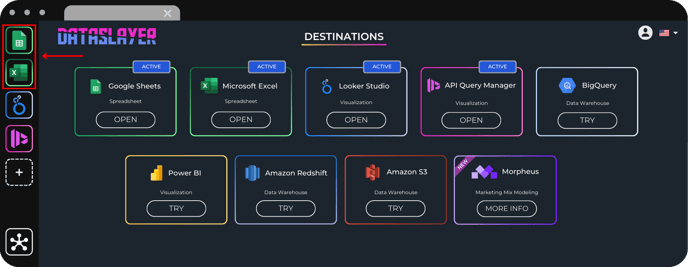
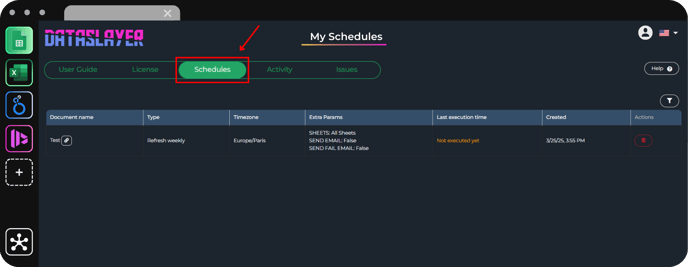
3. Click on **Schedules** in the top menu.
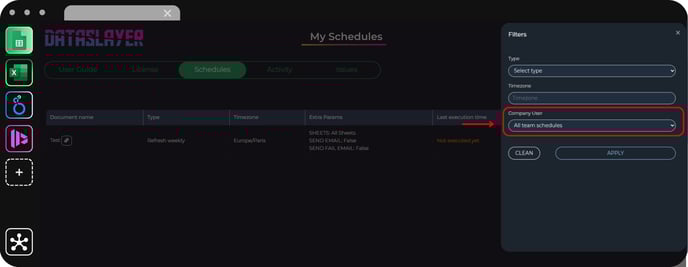
If you are part of a Company and have an **Owner** or **Admin** role, you will be able to **view the schedules created by other members** of your organization.
To do so, make sure to use the **“All team schedules” filter** at the top of the Schedules section to display schedules created by all team members
.png?width=688&height=268&name=Monitor%20Schedules%20(2).png)
### What you can do in the Schedules section
Once you're in the Schedules section, you’ll see a list of all the scheduled refreshes. From here, you can:
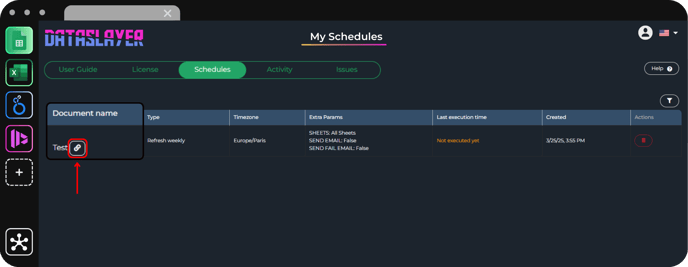
- Identify the **document associated** with each **schedule**.
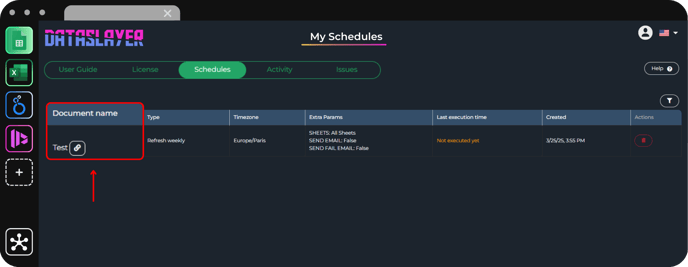
- **Access the document** directly from the schedules list.
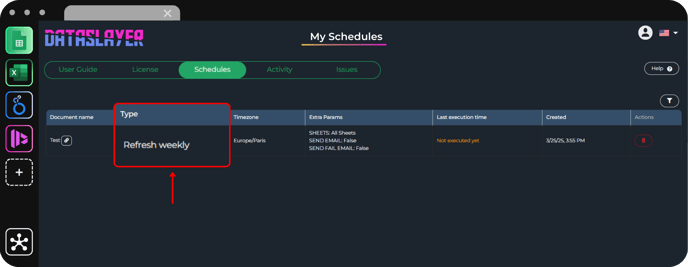
- Check **refresh frequency** of your schedules (hourly, daily, weekly, monthly, etc.).
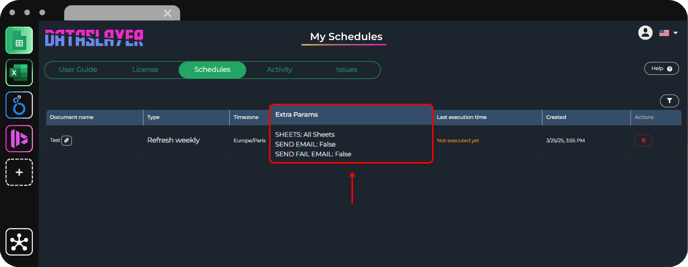
- See which specific **sheets** have scheduled queries.
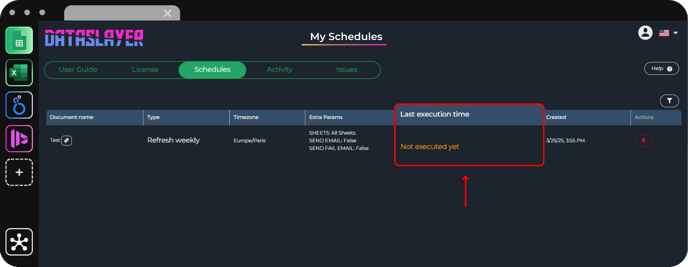
- View the **last execution time** of each schedule.
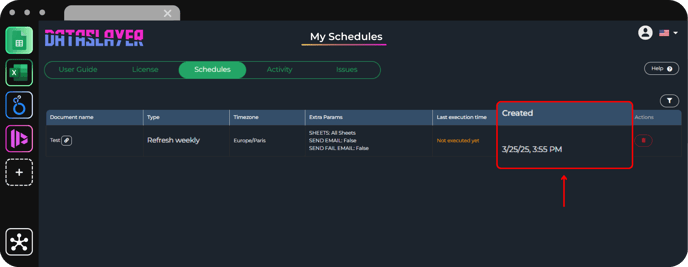
- Check the **creation date** of the schedule.
The timestamps displayed in the **Created column** are presented in **UTC** (Coordinated Universal Time).
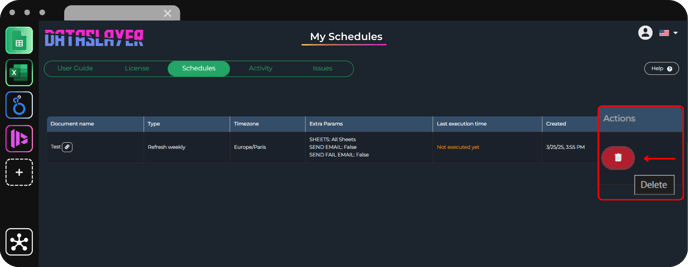
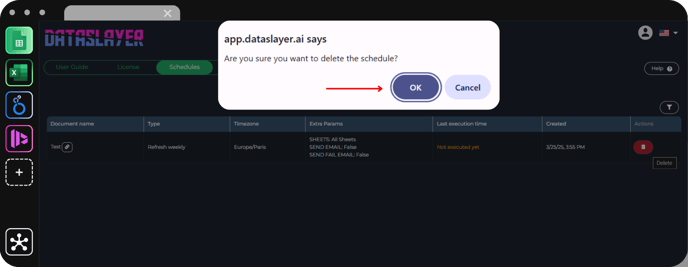
- **Remove the scheduled** refresh; a pop-up window will ask to confirm before deletion.
Once confirmed, the schedule will be **permanently removed** from the **Schedules page** and will no longer run in your **spreadsheet extension**.
**You can delete only the schedules that you have personally created**.
Even if you hold the *Owner* or *Admin role* within your company, you can only remove your own schedules.
As always, please contact us via our live chat on our [website](https://dataslayer.ai/) or via [email](mailto:info@dataslayer.ai) if you still have doubts or questions. We are happy to help!
- [General](https://support.dataslayer.ai/general?hsLang=en)
- [Billing & Pricing](https://support.dataslayer.ai/billing-pricing?hsLang=en)
- [Data Sources](https://support.dataslayer.ai/data-sources?hsLang=en)
- [Blended Connectors](https://support.dataslayer.ai/blended-connectors?hsLang=en)
- [Google Sheets](https://support.dataslayer.ai/google-sheets?hsLang=en)
- [Microsoft Excel](https://support.dataslayer.ai/microsoft-excel?hsLang=en)
- [Spreadsheets](https://support.dataslayer.ai/spreadsheets?hsLang=en)
- [Looker Studio](https://support.dataslayer.ai/looker-studio?hsLang=en)
- [Big Query](https://support.dataslayer.ai/big-query?hsLang=en)
- [API Query Manager](https://support.dataslayer.ai/api-query-manager?hsLang=en)
- [Power BI](https://support.dataslayer.ai/power-bi?hsLang=en)
- [Amazon S3](https://support.dataslayer.ai/amazon-s3?hsLang=en)
- [Amazon Redshift](https://support.dataslayer.ai/amazon-redshift?hsLang=en)
- [Snowflake](https://support.dataslayer.ai/snowflake?hsLang=en#main-content)
- [Marketplace](https://support.dataslayer.ai/snowflake?hsLang=en#marketplace)
- [Google Cloud Storage](https://support.dataslayer.ai/google-cloud-storage?hsLang=en)
- [Database](https://support.dataslayer.ai/database?hsLang=en)
- [Azure SQL](https://support.dataslayer.ai/azure-sql?hsLang=en)
- [Azure Storage](https://support.dataslayer.ai/azure-storage?hsLang=en)
- [Dataslayer Atlas](https://support.dataslayer.ai/dataslayer-atlas?hsLang=en)
- [Morpheus](https://support.dataslayer.ai/morpheus?hsLang=en)
- [AI Looker Studio Analyzer](https://support.dataslayer.ai/ai-looker-studio-analyzer?hsLang=en)
- [Dataslayer MCP](https://support.dataslayer.ai/dataslayer-mcp?hsLang=en)
- [Dataslayer GPT](https://support.dataslayer.ai/dataslayer-gpt?hsLang=en)
- [Dataslayer AI Chat](https://support.dataslayer.ai/dataslayer-ai-chat?hsLang=en)
[](https://dataslayer.ai/)
Dataslayer.ai: Digital Marketing Reporting Made Easy
Copyright © 2026, DATASLAYER SL