---
title: Understanding the Azure SQL login fields
description: Learn what each login field means when connecting Azure SQL to Dataslayer. Understand every required credential to set up your connection successfully.
---
[Skip to content](https://support.dataslayer.ai/understanding-the-azure-sql-login-fields#main-content)
- [English](https://support.dataslayer.ai/understanding-the-azure-sql-login-fields)
- [Español](https://support.dataslayer.ai/es/understanding-the-azure-sql-login-fields)
English
Show submenu for translations
[](https://www.dataslayer.ai/)
Open main navigation
Close main navigation
- - [English](https://support.dataslayer.ai/understanding-the-azure-sql-login-fields)
- [Español](https://support.dataslayer.ai/es/understanding-the-azure-sql-login-fields)
English
Show submenu for translations
Hello. How can we help you?
- There are no suggestions because the search field is empty.
1. [Knowledge base](https://support.dataslayer.ai/?hsLang=en)
2. [Azure SQL](https://support.dataslayer.ai/azure-sql?hsLang=en)
April 1, 2026
# Understanding the Azure SQL login fields
## In this article, we explain what each Azure SQL login field means and where to find the required credentials when connecting Azure to Dataslayer.
When using the **[Azure SQL](https://app.dataslayer.ai/azure_sql)** **destination** in **[Dataslayer](http://app.dataslayer.ai/)**, you need to **connect your Azure SQL account** to send and store data via queries.
.png?width=670&height=307&name=Azure%20SQL%20-%20Login%20Fields%20(1).png)
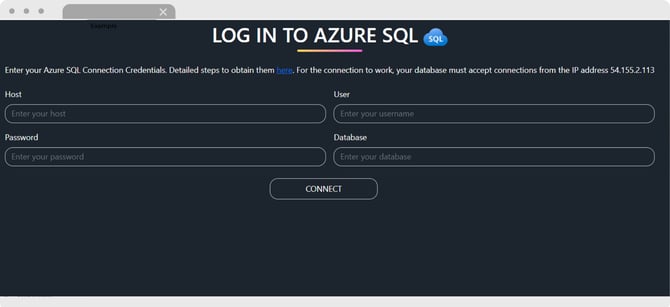
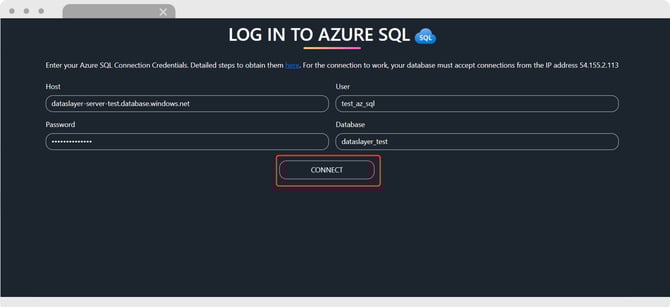
To establish this connection, you’ll be prompted to **fill out several Azure SQL login fields**. This article explains what each field represents and where to find the necessary credentials within your Azure SQL environment.
### Required fields for connecting to Azure SQL
Below is a breakdown of the required fields to set up your Azure SQL destination in Dataslayer, including where to find each value:
**1. Database**
- Where to find it
- Log in to [Azure SQL](https://azure.microsoft.com/) and use the search bar to find **SQL server settings.**
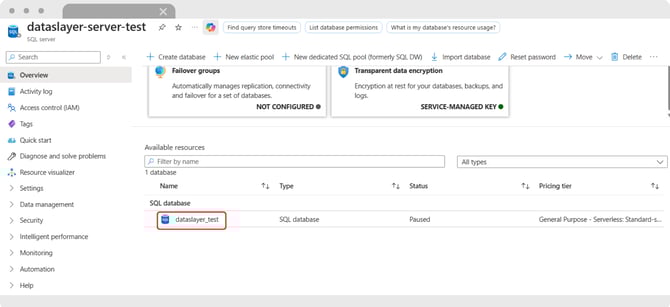
- Select one of your **available servers** and then scroll down until you find your **SQL database**
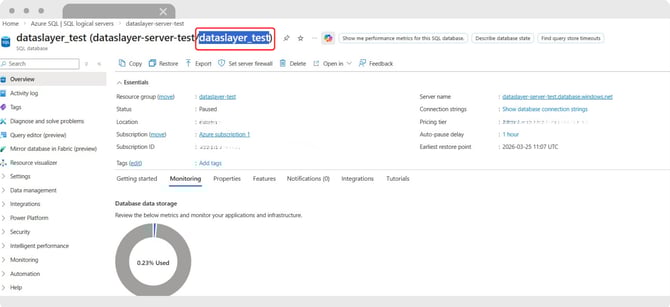
- Copy the **last part** after the / in the title of this page and paste it into Dataslayer's connection page
**2. Host**
- Where to find it
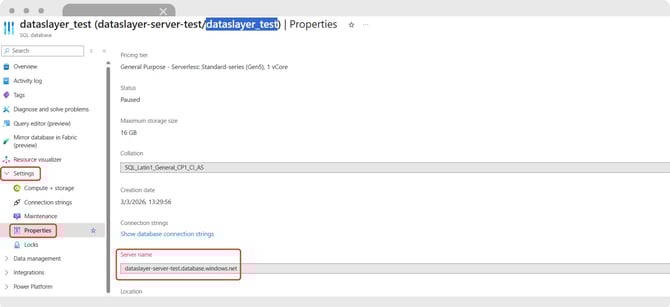
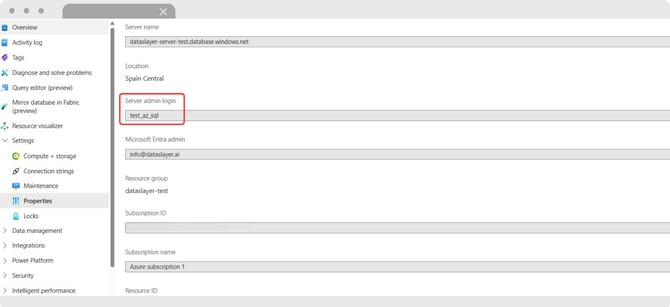
- In the left menu, go to Settings, and then click on Properties. You'll see the **Server name,** copy that and pase it the the Host field in Dataslayer
**3. User**
- Where to find it
- In the same page as host above, you'll see **Server admin login,** copy that and pase it the the User field in Dataslayer
**4. Password**
- This is the **same password** you used to sign in into Azure's portal.
#### Configuring a Firewall Rule
For the connection to work, your database must accept connections from the IP address 54.155.2.113.
To do so:
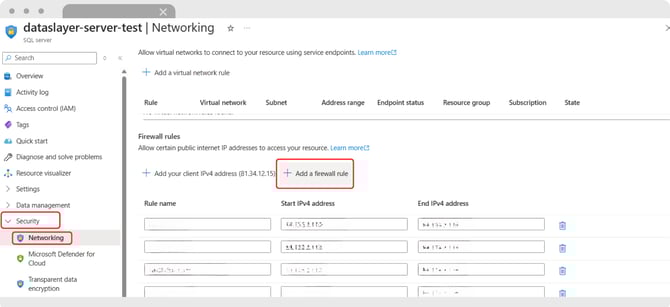
1. Go back to your **Server**
2. Go to **Security** in the left panel and click on **Networking**.
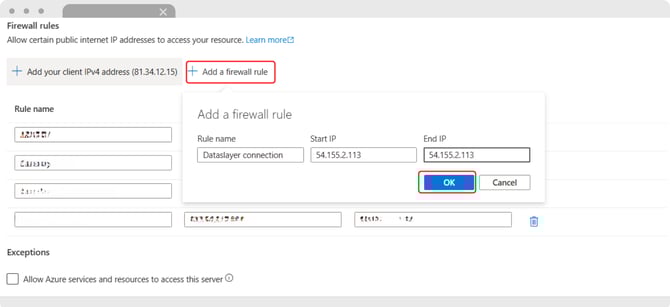
3. Scroll down until you see **Firewall Rules** and click **Add a Firewall rule**
1. Give it a name of your choosing
2. Paste 54.155.2.113 in both Start IP and End IP fields
#### Example Configuration
Here is a sample of a completed configuration:
- **Host:** `example-server.database.windows.net`
- **User:** `EXAMPLEUSER`
- **Password:** `pS$hX4MñE.QwRD%`
- **Database:** `MARKETING_AZURE`
- **Firewall Rule Name:** `Dataslayer Connection`
- **Start IP:** `54.155.2.113`
- **End IP:** `54.155.2.113`
As always, please contact us via our live chat [on our website](https://dataslayer.ai/?__hstc=205882892.609c93ea8042b8239c499e224c18b52a.1712818507477.1713181287827.1713258274101.5&__hssc=205882892.27.1713258274101&__hsfp=3856379180) or [via email](mailto:info@dataslayer.ai) if you still have doubts or questions. We are happy to help!
- [General](https://support.dataslayer.ai/general?hsLang=en)
- [Billing & Pricing](https://support.dataslayer.ai/billing-pricing?hsLang=en)
- [Data Sources](https://support.dataslayer.ai/data-sources?hsLang=en)
- [Blended Connectors](https://support.dataslayer.ai/blended-connectors?hsLang=en)
- [Google Sheets](https://support.dataslayer.ai/google-sheets?hsLang=en)
- [Microsoft Excel](https://support.dataslayer.ai/microsoft-excel?hsLang=en)
- [Spreadsheets](https://support.dataslayer.ai/spreadsheets?hsLang=en)
- [Looker Studio](https://support.dataslayer.ai/looker-studio?hsLang=en)
- [Big Query](https://support.dataslayer.ai/big-query?hsLang=en)
- [API Query Manager](https://support.dataslayer.ai/api-query-manager?hsLang=en)
- [Power BI](https://support.dataslayer.ai/power-bi?hsLang=en)
- [Amazon S3](https://support.dataslayer.ai/amazon-s3?hsLang=en)
- [Amazon Redshift](https://support.dataslayer.ai/amazon-redshift?hsLang=en)
- [Snowflake](https://support.dataslayer.ai/snowflake?hsLang=en#main-content)
- [Marketplace](https://support.dataslayer.ai/snowflake?hsLang=en#marketplace)
- [Google Cloud Storage](https://support.dataslayer.ai/google-cloud-storage?hsLang=en)
- [Database](https://support.dataslayer.ai/database?hsLang=en)
- [Azure SQL](https://support.dataslayer.ai/azure-sql?hsLang=en)
- [Azure Storage](https://support.dataslayer.ai/azure-storage?hsLang=en)
- [Dataslayer Atlas](https://support.dataslayer.ai/dataslayer-atlas?hsLang=en)
- [Morpheus](https://support.dataslayer.ai/morpheus?hsLang=en)
- [AI Looker Studio Analyzer](https://support.dataslayer.ai/ai-looker-studio-analyzer?hsLang=en)
- [Dataslayer MCP](https://support.dataslayer.ai/dataslayer-mcp?hsLang=en)
- [Dataslayer GPT](https://support.dataslayer.ai/dataslayer-gpt?hsLang=en)
- [Dataslayer AI Chat](https://support.dataslayer.ai/dataslayer-ai-chat?hsLang=en)
[](https://dataslayer.ai/)
Dataslayer.ai: Digital Marketing Reporting Made Easy
Copyright © 2026, DATASLAYER SL