
1. Log into the Dataslayer website.

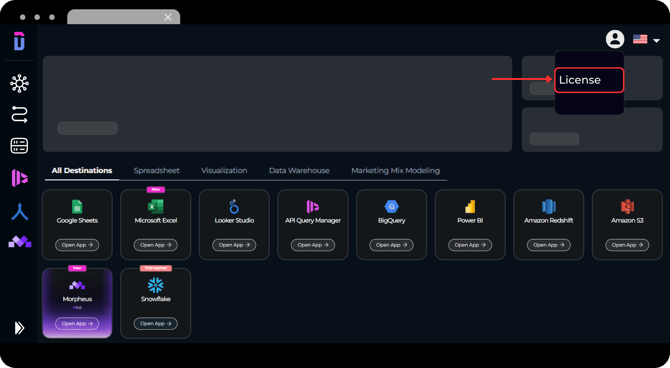
2. Once logged in, click on your profile picture in the top right corner and select License from the displayed menu.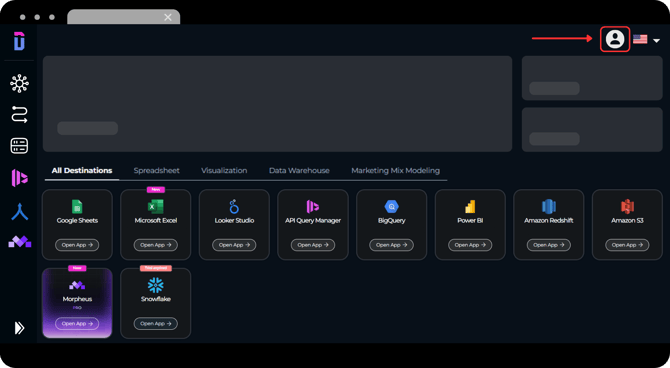
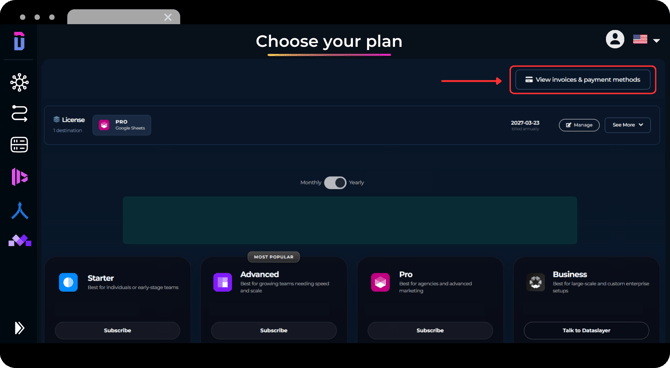
3. In the License section, click on the button labeled View invoices & payment methods.
4. A new window will open from Stripe (our payment platform) where you can see and manage all the information of your plan, credit cards stored and invoices.

Under Current Plan, you will see the information of your current license; the name of your subscription plan, when it renews or cancels and the credit card associated with the payment.
If you have downgraded your subscription, in the Current Plan section you will see the downgraded plan, even though it doesn't apply until your current subscription ends.
Ex: If you have an Advanced Plan and you downgrade to a Starter, in that section you will see: next payment is day X for the amount of the Starter plan.
From this window, you will see all your active subscriptions, as it works at the client level.
Ex: You have a subscription in Google Sheets and another in Looker Studio. You click on the "View invoices & payment methods" button it will show all your active subscriptions, both Google Sheets and Looker Studio.
You will also be able to see, add, or remove all the credit cards stored (payment methods).
As always, please contact us via our live chat on our website or via email if you still have doubts or questions. We are happy to help!