
Manage your Dataslayer subscription
Managing your subscription in Dataslayer is simple and flexible. With Dataslayer, you’re in full control of your subscription. At any time, you can:
-
Upgrade your plan for more capacity
-
Downgrade to better match your needs
-
Switch between products
-
Cancel your subscription
-
Manage billing, invoices, and payment methods
All of this is available in your License section.
How to upgrade or downgrade your plan
Legacy plans are no longer offered. You can migrate to the new plans at any time by following the steps below. For more information, refer to this article.
If you need to adjust your subscription, you can upgrade or downgrade your plan directly from your account by following these steps:
Step 1: Log in to your Dataslayer account
Access your account via the Dataslayer app.
If your account belongs to a company, make sure to log in with the owner’s email.
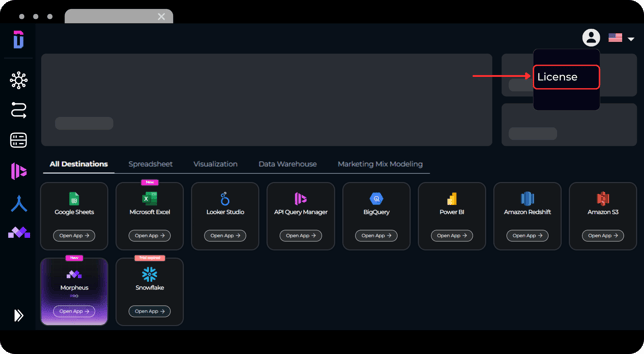
Step 2: Go to the License Section.
Click your profile picture (top-right corner) and select License. Here you can:
-
View and manage your current plan
-
Check your renewal date
-
Manage billing and payment methods
Step 3: Click "Manage" on your subscription.
This opens your subscription configuration.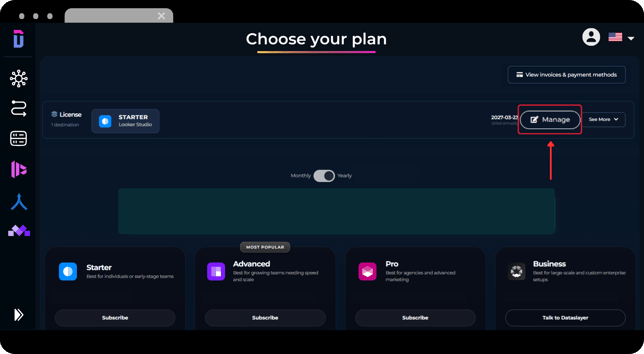
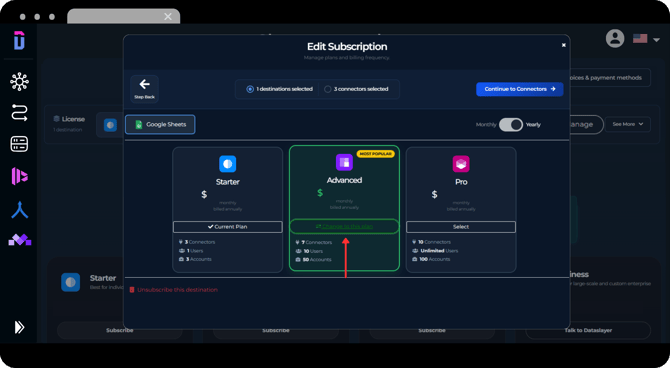
Step 4: Choose your new plan
Select the desired new plan (upgrade or a downgrade) and then click Continue to Connectors.
Migrating from legacy plans (February 2026 update)
If you are currently on a legacy plan, you can switch to the new plans by following the same steps described in this article. Simply select one of the new plans during the plan selection step and complete the process.
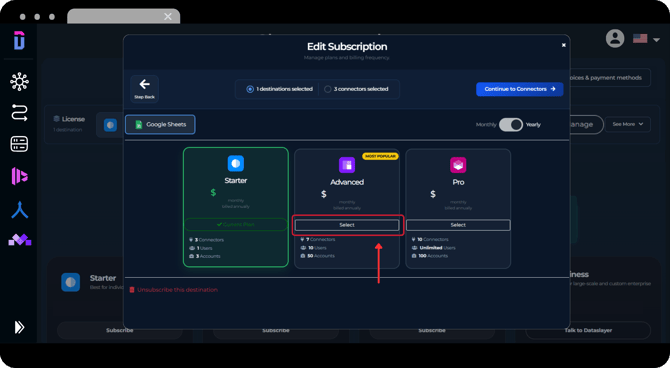
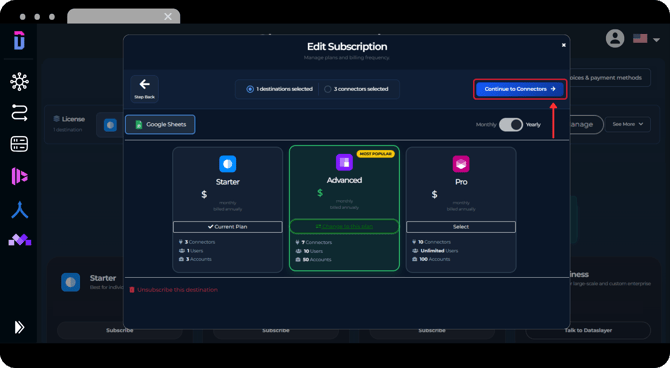
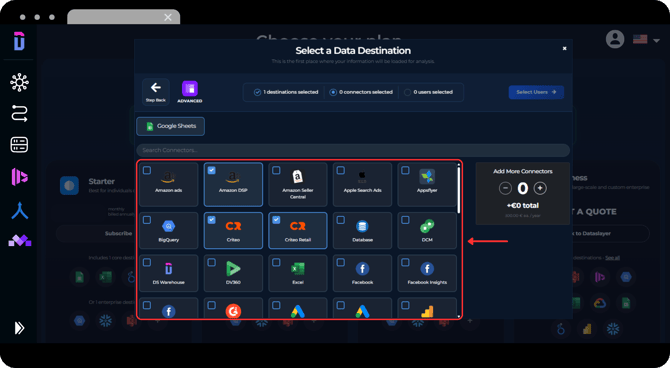
Step 5: Review connectors (data sources) and then click on Select User
- Upgrade: Add additional data sources included in your new plan
- Downgrade: Confirm which connectors you’ll keep
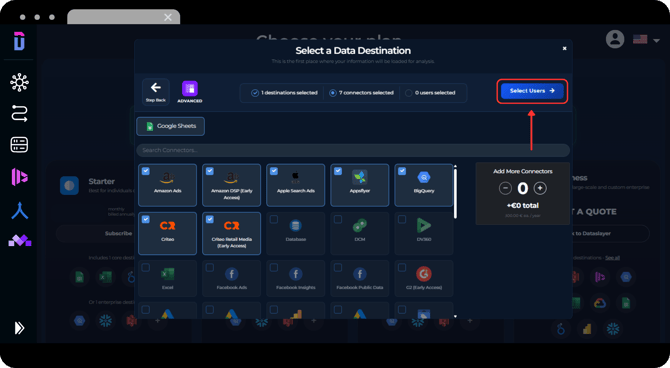
Step 6: Review users
- Upgrade: Add additional data sources included in your new plan
- Downgrade: Confirm which connectors you’ll keep
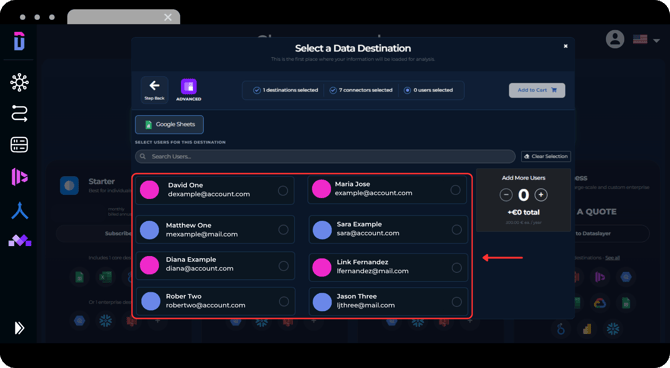
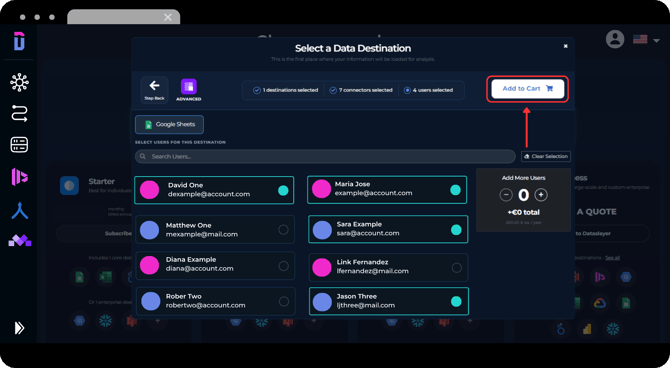
Step 7: Complete your purchase
Click Add to Cart and proceed to payment.
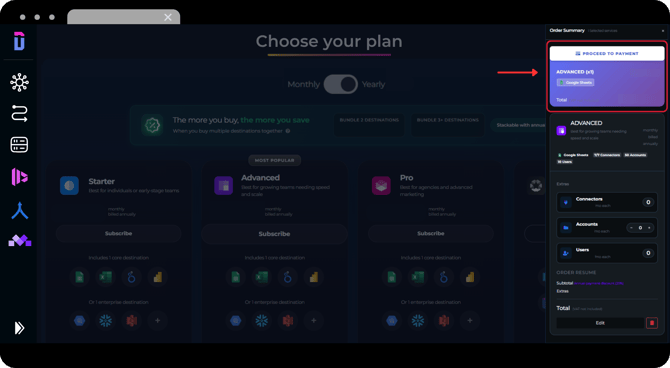
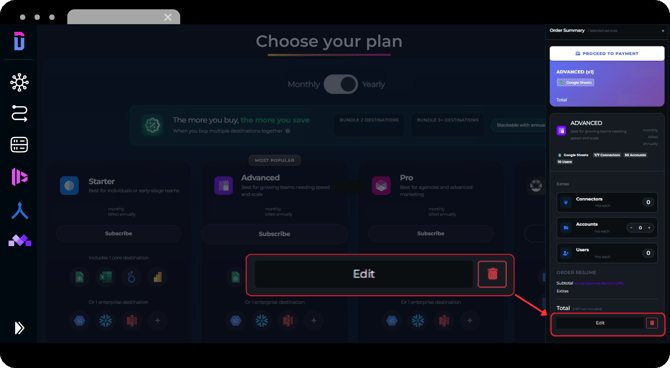
You can modify your selection before checkout by clicking “Edit”, or use the bin icon to remove it and start over.
How are subscription changes applied?
When you make a change in your subscription, it is applied automatically depending on the type of change:
Upgrades
-
Takes effect immediately
-
You only pay the prorated difference for the remaining billing period
Downgrades
- Takes effect at the end of your current billing cycle
- You cannot downgrade again until the new plan is active
If you temporarily need more capacity, consider adding extra users or accounts instead of upgrading your full plan.
How to switch between Dataslayer products?
Each destination can have its own separate subscription.
If you want to switch from one product to another (for example, from Google Sheets to Looker Studio, or Microsoft Excel to Google Sheets), follow these steps:
-
Cancel the subscription for the product you no longer wish to use by going to the License section and clicking on “Cancel renewal” button in your current subscription.
Your subscription will remain active until the end of your billing cycle, and you’ll continue to have full access until then. -
Purchase a new subscription for the product you want to use, following the same steps shown earlier.
If you wish to use multiple products at the same time and they have different plans, simply keep both subscriptions active. Each one will be billed separately, and you can manage them independently.
If you’re unsure about which subscriptions you need, please contact our support team. We'll help you choose the best setup for your needs.
How to cancel your subscriptions?
To cancel each subscription from the License section:
-
Go to the License section
-
Locate your active subscription and click on See more
-
Click Cancel renewal
.png?width=670&height=369&name=Cancel%20button%20(2).png)
Managing multiple subscriptions
If you have more than one active subscription, you’ll need to cancel each one separately.
- If you have separate subscriptions (for example, one for Google Sheets and another for BigQuery), cancel renewal in each subscription individually.
- If your subscription includes multiple destinations under the same plan, canceling it will affect all included destinations.
What happens next?
- Your subscription will not renew
- You’ll keep full access until the end of your billing period
How to request account deletion?
Note that you cannot delete a user if they have an active subscription or a pending payment.
If you want to delete your Dataslayer account, you can request this through your account settings:
-
Log in to your account in the Dataslayer app.
-
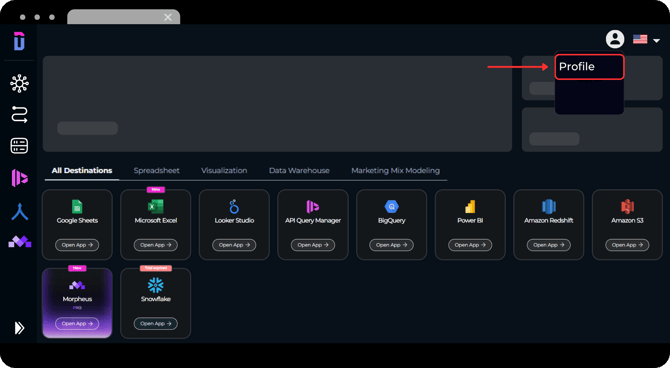
Click your profile picture (top-right corner) and go to Profile.
-
Scroll down to the red button labeled "Request Account Deletion".
.png?width=670&height=369&name=UI%20FEB%202026%20-%20%20UpDowngradeCancel%20(1).png)
-
Click the button and confirm your request.
.png?width=670&height=369&name=UI%20FEB%202026%20-%20%20UpDowngradeCancel%20(2).png)
Once submitted, your deletion request will be logged and processed automatically within three business days. During this time, you can still log in or cancel the request by contacting support.
Important
When you request account deletion, all your personal and subscription data is permanently erased. We only keep an anonymous, non-reversible identifier (a hashed version of your email) to recognize if you've had an account before.This helps us restore your previous service state if you return, but without keeping any sensitive or personal information.
This process helps ensure fair use and adds a thoughtful barrier before permanently closing an account.
If you need help or have any questions during these processes, feel free to contact our Support Team via live chat or email. We’re always happy to assist you!