
When using the Azure Storage destination in Dataslayer, you need to connect your Azure account to send and store data via queries.
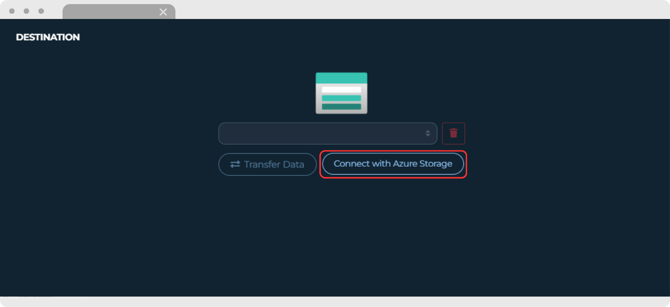
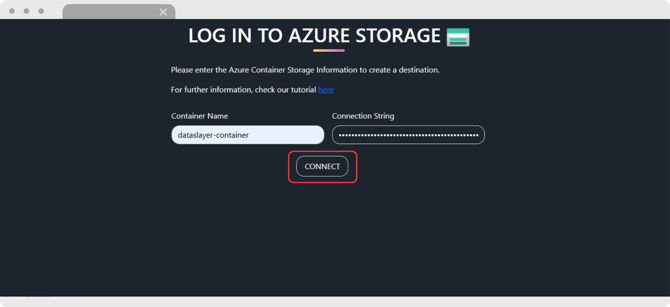
To establish this connection, you’ll be prompted to fill out 2 Azure Storage login fields. This article explains what each field represents and where to find the necessary credentials within your Azure Storage environment.
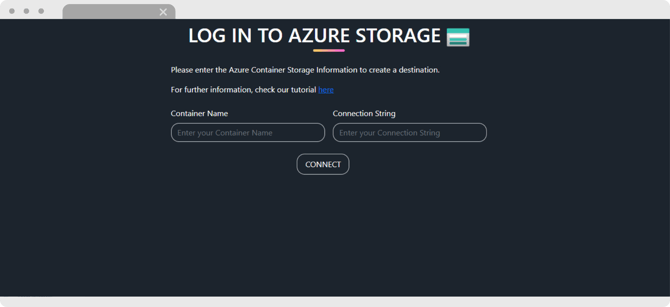
Required fields for connecting to Azure Storage
Below is a breakdown of the required fields to set up your Azure Storage destination in Dataslayer, including where to find each value:
1. Container Name
- Where to find it
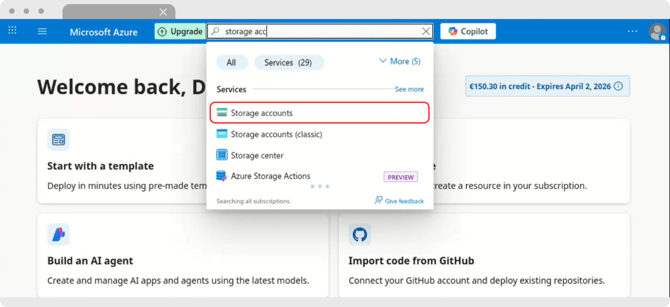
- Log in to Azure and use the search bar to find Storage Accounts
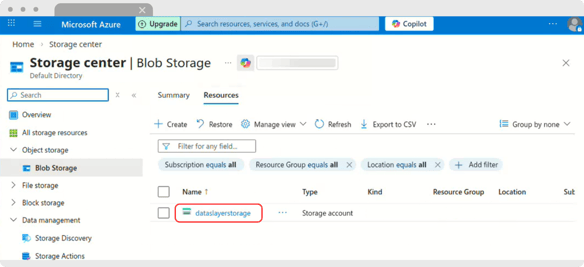
- Click Resources and select your Storage Resource
- In the side panel, select Data Storage -> Containers and copy the name of the Container you want
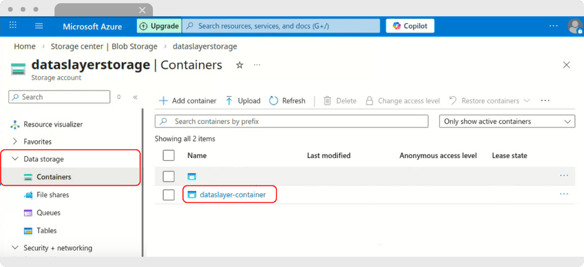
- Log in to Azure and use the search bar to find Storage Accounts
2. Connection String
- Where to find it
- In the side panel, select Security + networking -> Access keys and copy the accordingly Connection String
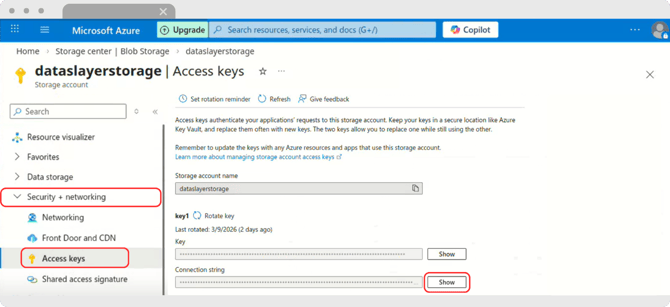
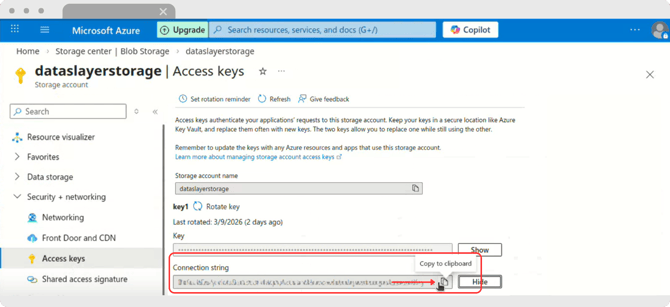
- In the side panel, select Security + networking -> Access keys and copy the accordingly Connection String
Example Configuration
Here is a sample of a completed configuration:
-
Container Name:
example-container -
Connection String:
DefaultEndpointsProtocol=https:AccountName=examplestorage:AccountKey
As always, please contact us via our live chat on our website or via email if you still have doubts or questions. We are happy to help!