
Having your marketing data consolidated in a Azure Storage helps eliminate repetitive manual tasks and ensures consistency across reports. Instead of downloading and importing spreadsheets from multiple platforms, Dataslayer allows you to schedule transfers that feed your Azure Storage seamlessly and securely.
Let’s walk through the process of setting up your first query.
Step-by-step:

- Sign in to your Dataslayer account to get started.

- Go to the Azure Storage Index area and click New transfer to create your first query.
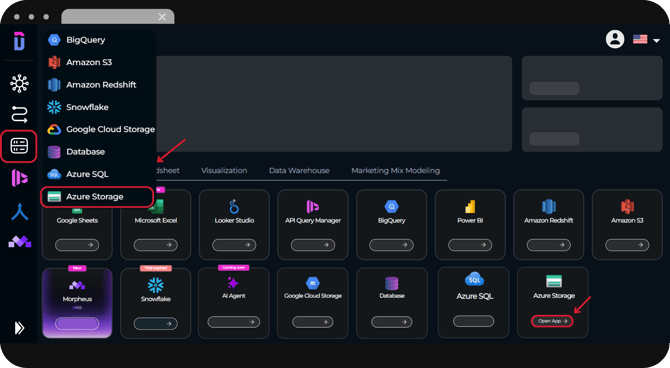
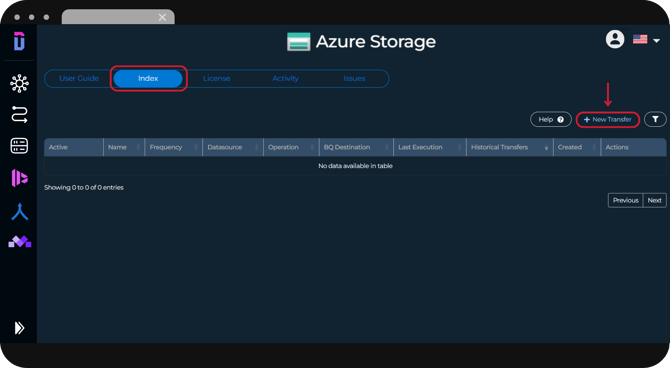
In the index section you'll be able to see your existing queries and where you'll be able to create new ones.

1. Pick the data source you want to pull data from and log in to your Hub Account.
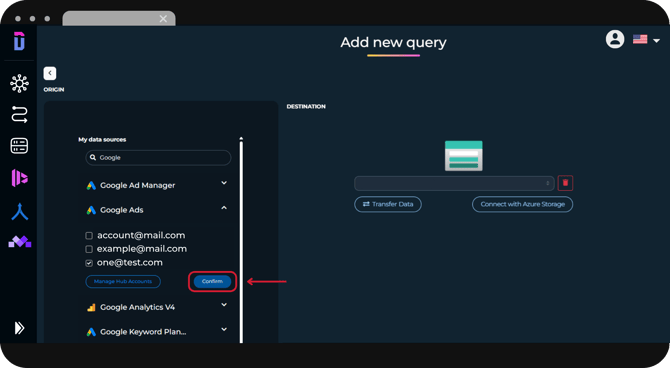
In this guide, you can learn how to connect your Hub Account to our available data sources.
2. Choose the accounts you’d like to extract information from.
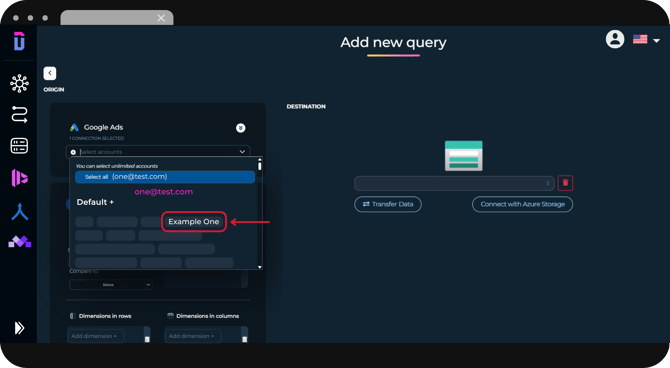
3. Next, configure how the query will collect your data:
- Select the date range for your dataset.
- Choose the metrics and dimensions to include.
- Apply any Filters and options that you need.
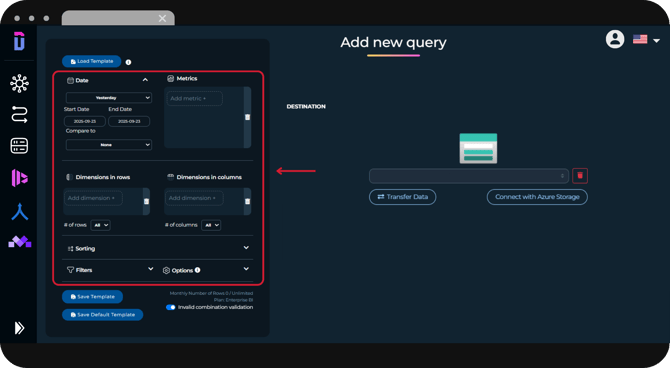
You can start from one of our pre-built templates or design a fully custom setup! Learn how here.

1. Choose your Azure Storage account connection by clicking on the "Connect with Azure Storage" button.
This article will guide you on how to understand login fields for a successful connection.
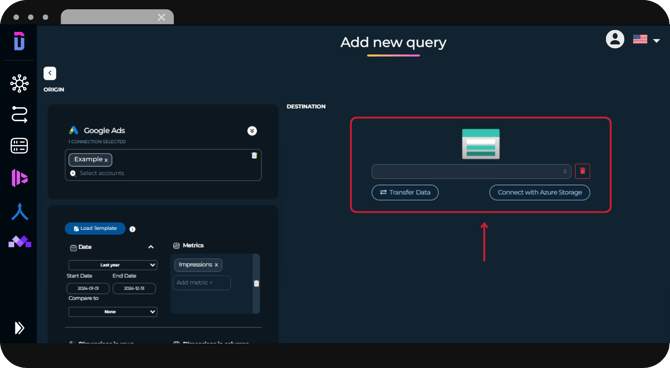
- 2. Fill in all transfer details:
-
Transfer name: internal identifier that only appears in Dataslayer.
-
Timezone: Select your timezone.
-
File name: Specify the name you want the file to have
-
Upload path: Optional.
You can write /example/test (if a folder without these names isn't already there, it will create it). -
Write mode: Select between append, upsert, or replace (choose depending on your ETL logic).
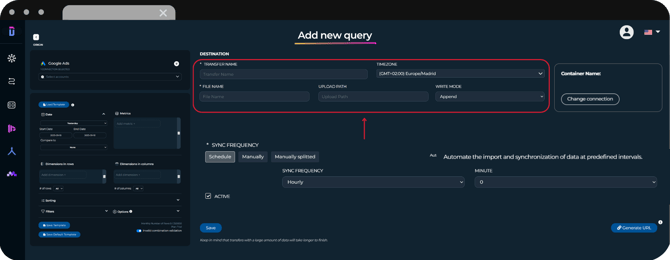
Learn more about the write modes in this article.
3. Select Sync frequency between Schedule, Manually or Manually splitted options.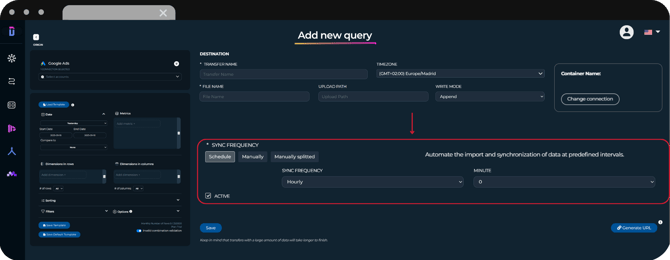
Understand all the sync frequency options in this guide.
4. Finally, save your transfer.
- For Schedule, click Save and the query will execute according to your setup.
- For Manually, you can choose Save & Refresh Now to run it immediately or Save to keep it stored for later.
- For Manually Splitted, click on Save and it will start in a few minutes. Go to your historical transfers in the index to see the status of your transfer.
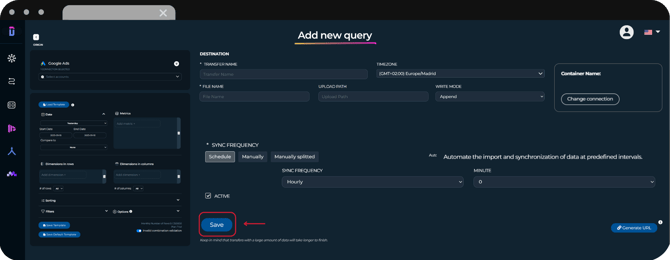
That's it! You have inserted your data into Azure Storage!
Preview data
If you want to see what the table you have created will look like, you can click on the Preview button to see it.
Note that this preview is limited to 200 rows.
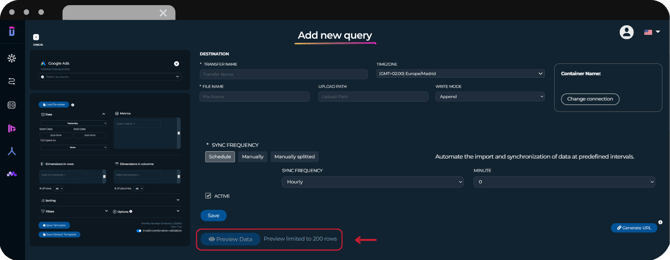
This way, you can make modifications if you have detected any errors or if you want to change the order of the columns, before uploading the table into Azure Storage.
The preview won't consume your monthly row limit.
As always, please contact us via our live chat on our website or via email if you still have doubts or questions. We are happy to help!