
You can share specific accounts from your data sources through Dataslayer MCP by generating a scoped shared link. Whoever uses the link can only access the accounts you selected, nothing else in your Dataslayer account.
How to create the link
- Open Dataslayer MCP. In the Dataslayer sidebar, go to AI > Dataslayer MCP, or open app.dataslayer.ai/mcp/shared directly.
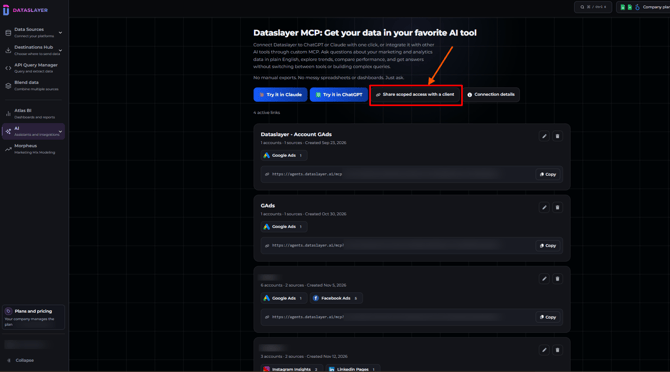
- Click "Share scoped access with a client". It's the third button at the top of the page, next to Try it in Claude and Try it in ChatGPT. The Create shared link window opens.
- Name the link. In Link name, enter a name that tells you who the link is for, e.g. Acme Corp - client portal. It will help you find and manage the link later.
- Select the accounts to share. Under Data access you'll see all your data sources and how many connections each one has. Click a data source to expand it, then tick the specific accounts you want to include. You can combine accounts from different data sources in the same link (for example, a client's Google Ads and Facebook Ads accounts). Everything you don't select stays private.
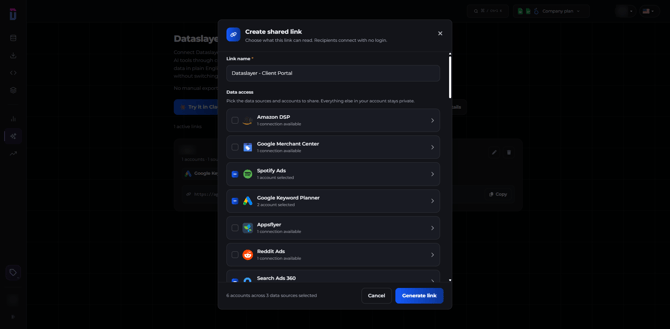
- Generate the link. Click Generate link. The new link appears in the list of active links on the Dataslayer MCP page, showing its name, data sources and number of accounts.
- Copy and share it. Click Copy next to the link URL and send it to the person who needs access.
How to use it
Paste the link in the custom MCP / custom connector option of your AI tool. No Dataslayer login is needed. Step-by-step guides for Claude, ChatGPT and other MCP-compatible tools.
Good to know
- Permissions: the link has the same read or write permissions the account was connected with in Dataslayer.
- Usage: queries count toward the usage of the person who created the link.
- Editing: use the pencil icon to rename the link or change the shared accounts. New accounts aren't added automatically.
- Revoking: deleting a link cuts access immediately.
- Expiration: links don't expire. If an account's credentials expire or you lose access to it, the MCP returns a message explaining the issue.
As always, please contact us via our live chat on our website or via email if you still have doubts or questions. We are happy to help!